
Hello! I’m Hirotomaru, and I’m writing this article.
In this post, I’ll show you how to use an Excel macro to “jump to cell A1 and reset the zoom level to 100%.”
You may have experienced situations where your scroll position or zoom level gets saved incorrectly, making the file hard to read the next time you open it. This macro makes it incredibly convenient to perform this action with just one click.
I will explain the steps for creating a macro shortcut button.
Show the Development tab
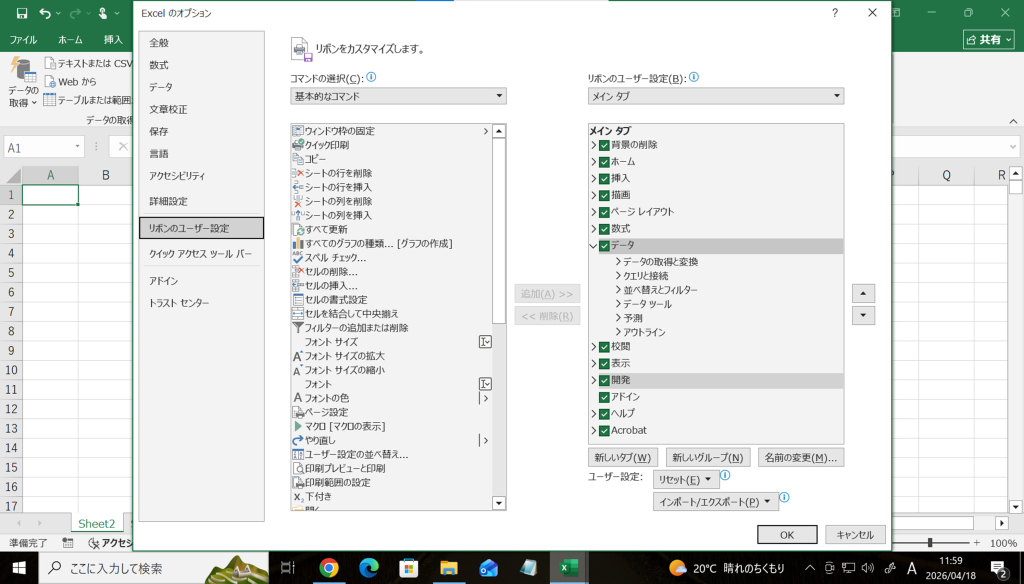
First, display the “Developer” tab to use macros.
- Click “File” in the upper-left corner
- Select “Other” → “Options”
- Open “Ribbon Customization”
- Check the “Development” box
Create a macro
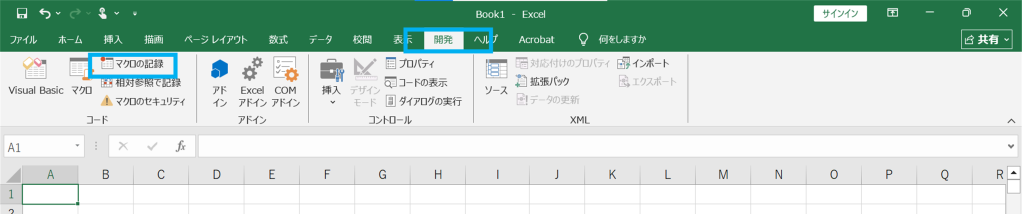
1.Click “Record Macro” on the “Developer” tab
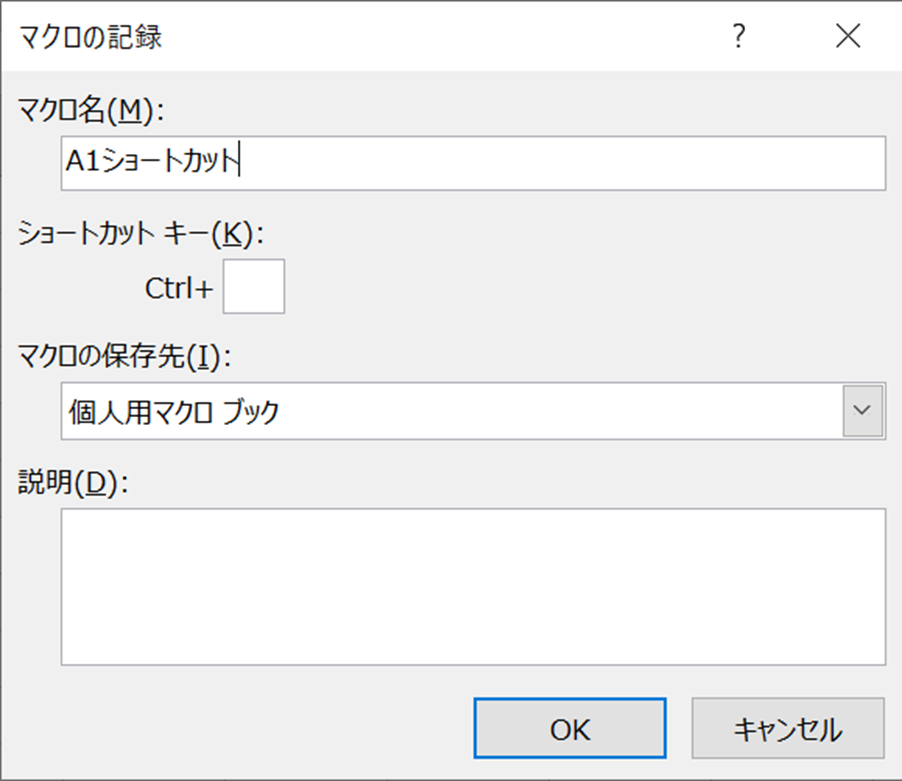
2.Enter the macro name, select “Personal Macro Workbook” under “Save macro in (I)”, and click “OK”
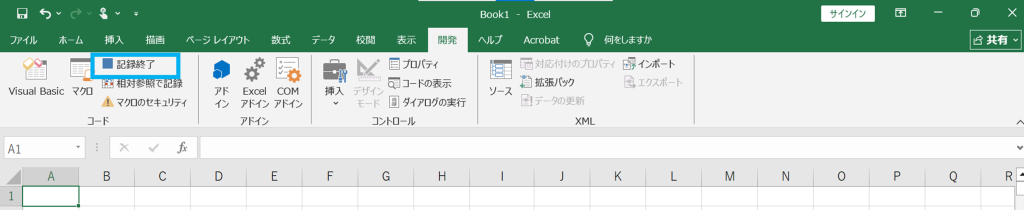
3.Without doing anything, click “Stop Recording”
Paste the code
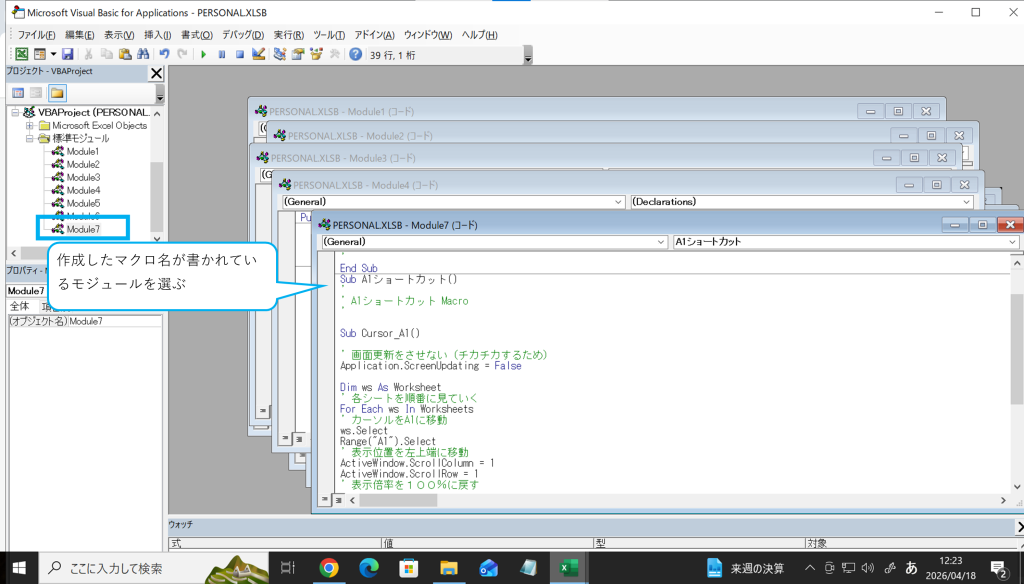
Open the “Visual Basic” section in the Development tab and paste the following code into the Standard Module.
Delete all existing text, and replace “Sub MacroName()” on the first line with the macro name you entered when you created it.
Once you’ve pasted the code, save and close the file.
Sub A1 Shortcut()
‘ Disable screen updating (to prevent screen flickering)
Application.ScreenUpdating = False
Dim ws As Worksheet
Process all sheets in order
For Each ws In Worksheets
‘ Select a sheet
ws.Select
‘ Move to cell A1
Range(“A1”).Select
‘ Reset the display position to the top-left
ActiveWindow.ScrollColumn = 1
ActiveWindow.ScrollRow = 1
‘ Set the display zoom level to 100%
ActiveWindow.Zoom = 100
Next ws
Return to the first sheet
Sheets(1).Select
Resume screen updating
Application.ScreenUpdating = True
‘ Completion message
MsgBox “Processing is complete”
End Sub
In this case, I pasted the code into Module 7 of the standard modules.
Add to Favorites
Add to Shortcuts Since you can’t run the macro with a single click as it is, let’s add it to the Quick Access Toolbar so you can run it immediately.
- Open the Quick Access Toolbar settings
- Select the macro
- Add the macro you created (A1 Shortcut) and click OK
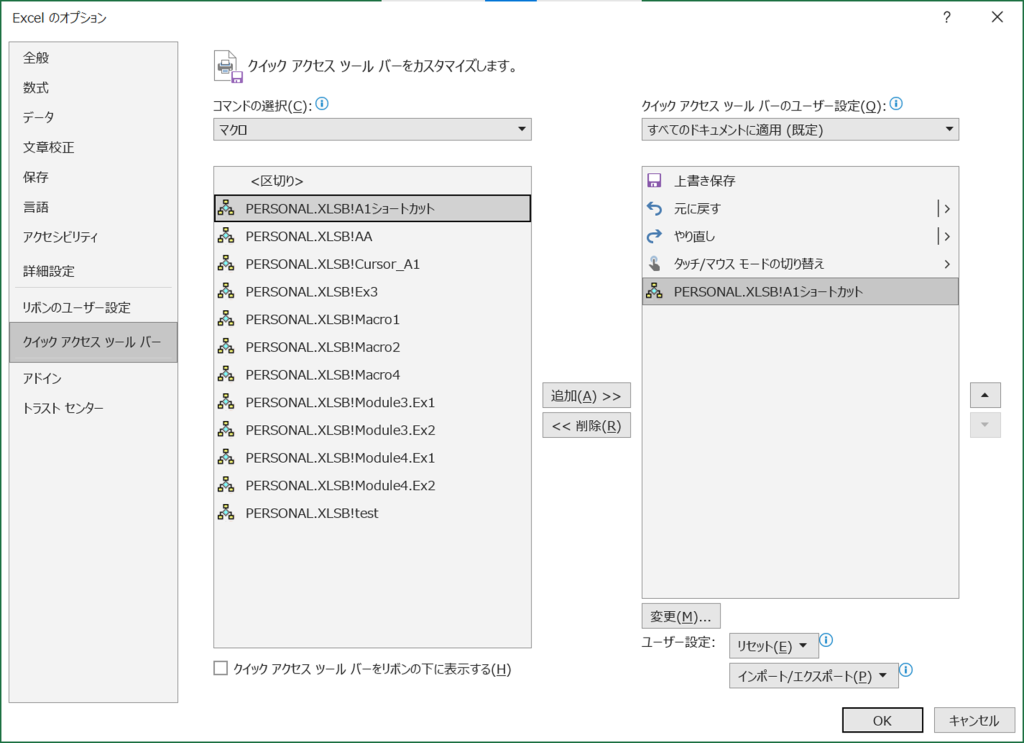
You can run it with a single click using the button in the upper-left corner.

Summary
By setting up the macro we’ve introduced here, you can easily reset the view position and zoom level for each sheet to their default settings. Since it can be executed with a single click, I believe it will help streamline your work. Please give it a try.
Stay tuned for our next engineer blog post!!