Thank you for viewing this article. I’m Michi, handling this employee introduction piece. This is my fourth appearance.
My last post (here) was in November 2023, so this is my first post in about two years.
I’ll share why I joined Dandelions and my thoughts on joining the company.
Reason for joining the company
In my previous position, I worked as a systems engineer for approximately 12 years. After completing in-house training, I was assigned to the same client site for about 11 years, where I was engaged in the work.
The company at that time held many social events like employee trips and BBQs, fostering a close-knit atmosphere among staff. Within that environment, I was often entrusted with organizing events, naturally gaining experience in bringing people together and creating a positive atmosphere.
My interactions with Mr. Takahashi, the representative of Dandelions, were more often through organizing these social events than through daily business operations. He consistently showed concern for me and provided support in various situations. Event management was by no means easy, but I feel I learned the importance of seeing things through responsibly and working together with others to make them happen.
Later, I heard that Takahashi was starting a company and was invited to join as a founding member. While I could have chosen to continue working in the same environment, my desire to “challenge myself in a new environment and take my growth to the next level” grew stronger, leading me to decide to join Dandelions.
Impressions after joining the company
It’s been eight years since I joined Dandelions, and during that time, I’ve worked at about five different client sites. As projects and environments changed, I’ve had the opportunity to engage with numerous technologies and tasks I’d never encountered before.
While the frequent changes can be challenging at times, I believe one of this company’s defining features is that you’re constantly gaining new experiences rather than repeating the same tasks. As a result, I truly feel my skills and perspective are expanding, and my “toolkit as an engineer” is steadily growing.
Dandelions is a company that values human connections. We host many events to foster camaraderie among employees, creating an environment where communication flows easily regardless of age or position. I feel this company is well-suited for those who enjoy interacting with people and value working as part of a team.
Our new company headquarters is now complete, and we are steadily increasing our number of young members. As we advance into the next phase as a company, an environment is taking shape where both experienced and young members can thrive in their respective roles.
Before I knew it, I found myself in the position of both a manager and a senior employee. Drawing on my past experiences, I aim to be someone who supports the growth of those joining our company going forward. We look forward to working with those who wish to take on new challenges at Dandelions.
At Kabo Banta, Okinawa. I felt that as the environment changes, so does the scenery you see.
That’s all for this time. Stay tuned for the next employee spotlight!
Thank you for reading. I’m Hirotomaru, the writer of this article. In June, I visited the Nagoya City Science Museum as part of our employee training program. It was a full‑sensory day of “seeing, touching, being amazed… and even sleeping (!?).” The theme was: Playing with science and encountering the universe.
Every exhibit was a huge hit!
The science museum is divided into three sections: the Technology Building, the Life Science Building, and the Astronomy Building. Each one is packed with hands‑on exhibits, and there was so much to see that half a day wasn’t nearly enough.
The Extreme Cold Lab, where you can experience a −30°C environment, was especially popular—despite it being a Friday, the numbered tickets ran out early. A large group of elementary school students seemed to be there on a field trip, so every floor was buzzing with energy. I even spotted one of our employees making friends with the kids! From creating an artificial tornado to watching a 1.2‑million‑volt discharge show, the whole place was full of excitement.
Planetarium “Brother Earth”
The highlight of the day was, without a doubt, the world‑class planetarium “Brother Earth”! Inside its massive 35‑meter‑wide dome, the experience felt as if we were completely enveloped by the universe.
We began with an explanation of Nagoya’s night sky in June. The stories and meanings behind the Summer Triangle, the North Star, and the positions of Saturn and Mars were so captivating that I found myself completely absorbed.
The visuals were stunning—it felt as if I were gazing up at a real star‑filled sky. Since I rarely get the chance to look at the stars in everyday life, having this quiet moment to simply take in the sky felt truly special.
Black Hole Special: Drawn Into the Darkness of the Universe?
The second half focused on the special theme: black holes. “What does it mean that even light can’t escape?” “Time gets distorted? What exactly is spacetime?” I found myself drawn deeper and deeper into these cosmic mysteries that we never encounter in everyday life.
The visuals and sound effects of the black hole were incredible, letting us experience what it might feel like to be drawn into the pitch‑black, bottomless vortex at its center. The reclining seats were so comfortable that it seems some people were pulled into a sleep even deeper than a black hole…
Beyond Learning: An Encounter with Science
This day at the Nagoya City Science Museum was more than just a tour or a training session—it was an intellectual adventure filled with the joy of discovery and moments of genuine wonder. Experiencing the many science‑based exhibits was truly enjoyable.
And that concludes our off‑site learning report from the Nagoya City Science Museum—a day filled with science, relaxation, and plenty of laughter! Stay tuned for the next article!!
Thank you for reading. I’m Omatsu from the Business Management Department, and I’ll be handling this blog post. This time, as an event introduction, I’ll be sharing details about the End-of-Term Report Meeting held in November 2025.
The first presentation was from Team 1, which primarily handles AI. The content focused on video generation utilizing AI. Details are as follows.
Planning
Narration Text Generation
Image material generation
Generate videos using AI based on the generated images
Edit
Music Generation
I actually watched a video utilizing AI, and I was truly amazed—there were no inconsistencies in the footage used, and the narration was polished and stylish.
Next up is my presentation on the e-commerce site I’m responsible for. Details are as follows.
Number of shops that signed contracts this term
Number of shops publicly launched on the e-commerce site this period
The Full Picture of the Strategic Shift (AI-generated video)
A Year of Transformation
Transition to the Kimono Market
New Content Strategy
Verification: Data and Expert Perspectives
2026 Growth Roadmap
Next Fiscal Year Activities
We submitted monthly reports, but looking back on this period as a significant milestone of one year, I believe it was a year where we saw substantial growth in the number of shops that reached contract and public launch stages, demonstrating that our daily efforts have yielded tangible results.
Following that, we reviewed events from this term (such as the office relocation) and discussed plans for the next term, during which it was announced that the structure would undergo significant changes from the current setup.
Employee Social Gathering
After the end-of-term report meeting, all employees enjoyed a Christmas dinner at Pergola, the restaurant at the Marriott Associa Hotel! We saw everyone’s eyes light up as they admired the array of roast beef and desserts on display! Additionally, this gathering included those joining the company next April, providing an opportunity to deepen bonds. Everyone seemed to be having a wonderful time.
As the networking event drew to a close, we observed the prospective hires voluntarily moving around the room, actively engaging with our employees.
Summary
It was a valuable opportunity to learn about and share the activities we’ve undertaken over the past year. I frequently see AI-generated videos posted as promotions for the e-commerce site I manage, but learning about the generation process firsthand made me truly appreciate their amazing capabilities.
Additionally, this was my first time being given my own presentation time at the end-of-term report meeting, and I was very nervous. However, I feel I was able to clearly convey the initiatives and challenges I faced this term.
That’s all for this introduction. Stay tuned for our next blog post!
As a tech blog, I’d like to share what I’ve been learning recently. This time, I’ll walk you through how I set up a Vue 3 development environment using Cursor, a code editor with built-in AI features.
Requirements
・Node.js ・Cursor ・Vue3 ・Vue Router
Installing Node.js
Download the installer from the official website The latest version at the time of writing is 24.12.0 (LTS) Download the Windows installer
Follow the installation wizard. If you don’t have any specific preferences, just clicking ‘Next’ through all the steps is fine.
You can basically keep clicking ‘Next’ here as well, but if you plan to use various Node.js modules in the future, it’s a good idea to check this option. However, it’s not necessary for this setup.
That’s it! Node.js is now set up and ready to go.
Installing Cursor
Download the installer from the official website. The latest version at the time of writing is 2.2.44. If you don’t have any specific preferences, you can proceed with the default settings during installation. After installation, you’ll be prompted to log in, so it’s a good idea to create an account on the official website beforehand for a smoother setup.
Adding Extensions to Cursor
Add the following extensions to Cursor
Japanese Language Pack for VS Code ・Japanese localization
npm ・Support for npm
Npm Intellisense ・Auto-completion for npm modules in import statements
Vue (Official) ・Support for Vue
Vite ・Support for Vue development server
Creating a Vue 3 Project
Go to File > Open Folder and open the location where you want to create your project.
Open the terminal with [Ctrl + @]
Run the following command in the terminal to create the project
npm create vue@latest
Type ‘y’
Enter your preferred project name and package name.
Select the packages you want to add.
Give it a try
TypeScript ・Must be added
JSX Support ・Enables writing Vue in JSX/TSX syntax. Add this if you prefer a React-like style. ・Turned off for this setup.
Router ・Essential for page navigation ・Must be added
Pinia ・State management library ・Add if you need to manage login info, user data, or shared state
Vitest Add if you want to automate unit testing
End-to-End Testing ・Add if you want to automate tests that include browser interactions
ESLint ・Linting tool to check code style ・Must be added
Prettier ・Automatically formats your code ・Must be added
You’ll be asked whether to enable experimental features. Since we won’t be using them this time, just press Enter to keep the default.
You’ll be asked whether to create the project without sample code. For this setup, select ‘No’ to include the sample code.
The project creation will begin, and once it’s complete, a project folder will be generated.
Reopen the created project folder in Cursor and run the following command
PS C:\vue3\startupVue> npm install
Once the dependencies are installed, the project setup is complete.
Starting the Vue app
Run the following command to start the development server
npm run dev
If the launch is successful, the following screen will be displayed
You can stop the server by typing [q] in the console.
That’s it! We’ve set up a Vue 3 development environment using Cursor. If this sparked your interest, try setting it up on your own PC too!
Happy New Year. I am Hideaki Takahashi of Dandelions Co., Ltd. We sincerely thank all of you for your support throughout the past year. We look forward to your continued support this year.
Toyokuni Shrine 1
Last October, we relocated our office to a new building.
Looking back on last year, a major milestone for us was the office relocation to our new headquarters in October.We were able to complete the relocation successfully thanks to the cooperation of our valued business partners and, above all, each and every member of our team. We sincerely thank you all.
Dandelions New Headquarters
Immediately after the move, the change in environment meant many unfamiliar things, and it was a continuous process of trial and error. However, we have gradually become accustomed to working in the new office building. To be honest, though, I don’t feel like it’s “finished just because it’s ready.” Rather, I feel like this is where the real plan, set in our new headquarters, finally begins.
With our new headquarters as the stage, we will further cultivate an environment conducive to taking on challenges.
We aspire to be a team where ideas flow more freely and challenges are embraced with greater enthusiasm, all to create better services. By leveraging our new base, we will enhance the quality of our daily work, increase learning opportunities, and further cultivate an environment that encourages taking on challenges.
Company atmosphere
Next April, we will welcome new members.
And next April, new employees are scheduled to join us. I myself am very much looking forward to welcoming new colleagues. With fresh perspectives and energy joining the team, this should be a year where the company itself takes another step forward in its growth. As the welcoming side, I want to prepare an environment where they can feel secure in taking on challenges and fully commit to their development.
Toward fields where people can thrive across generations
We want to create a positive atmosphere and provide opportunities for challenge so that everyone joining our company feels, “This is a company that will continue to step up and grow.”At the same time, we will place greater emphasis than ever before on creating fields where individuals can thrive across generations, regardless of age or years of experience. The drive of our young talent, the momentum of our mid-career professionals, and the depth of our veterans—all contribute to the company’s strength. We are committed to building such a team.
Toyokuni Shrine 2
We look forward to your continued support this year.
This year, Dandelions will continue to build upon our valuable work centered around “technology” and “people.” We sincerely appreciate your continued guidance and support.
May this year be one of health and abundance for you all. We look forward to your continued support this year.
Dandelions Co., Ltd. President and CEO: Hideaki Takahashi
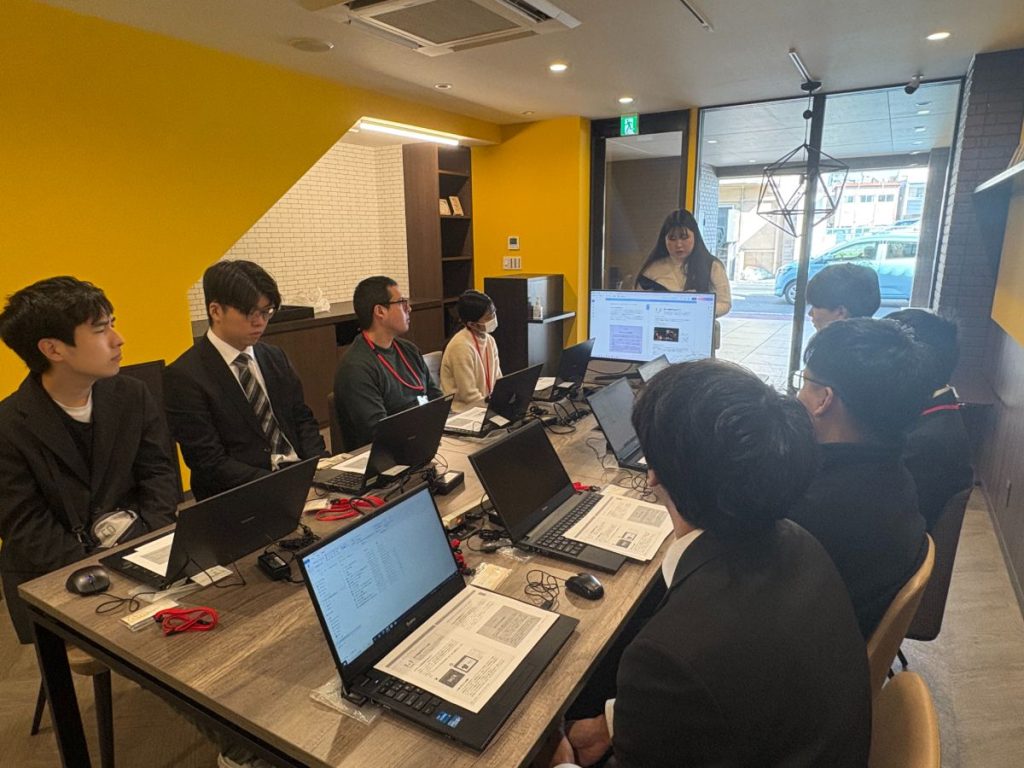
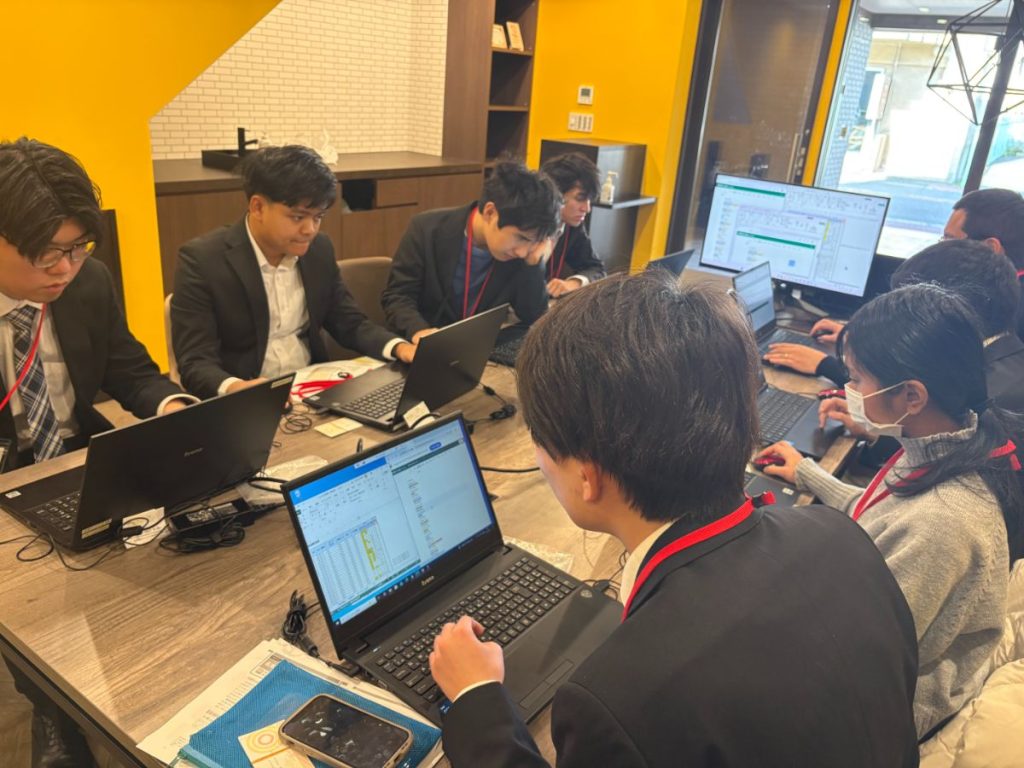
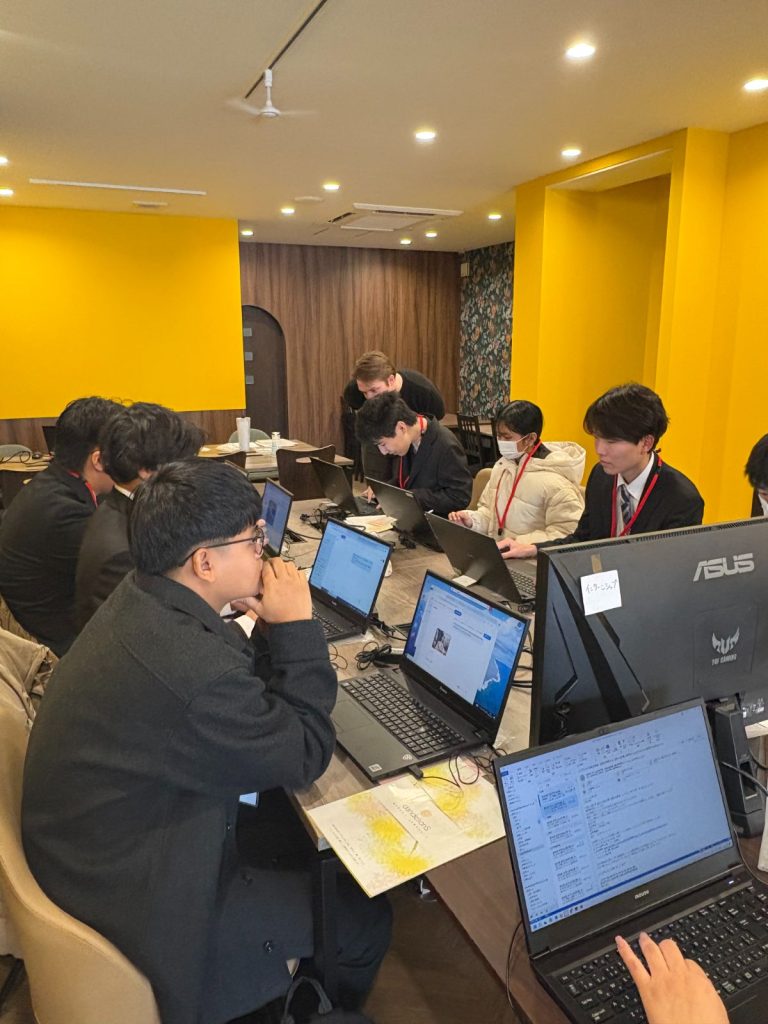
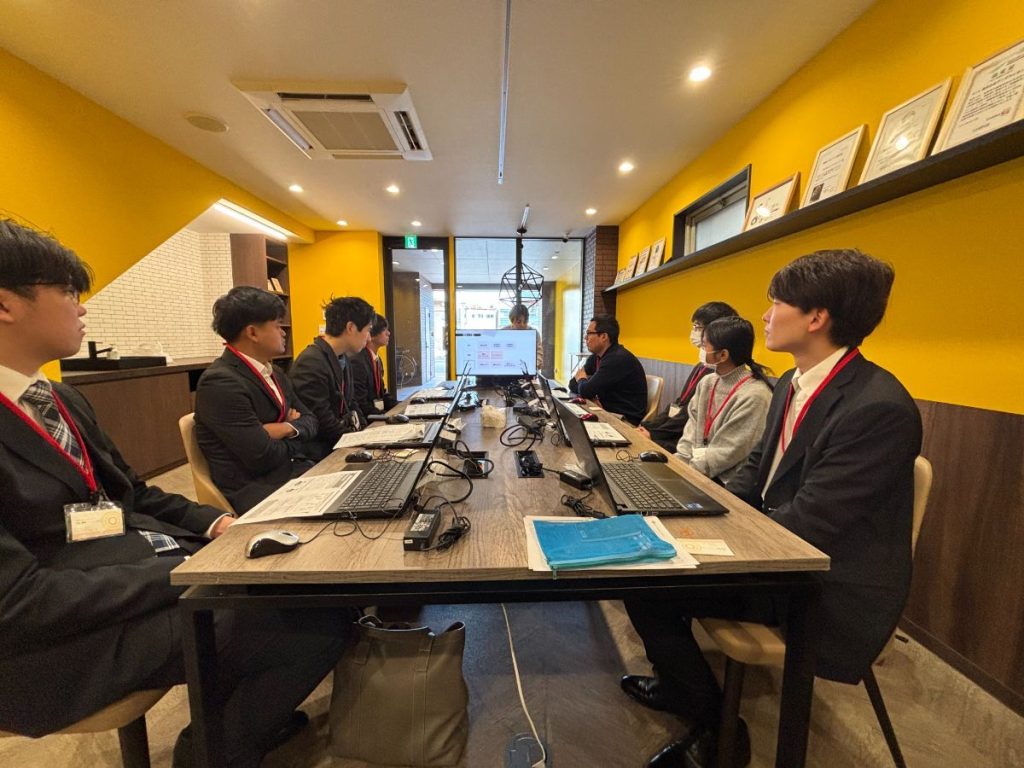
I’m oz, and I’ll be covering this study session article. This time, we held our study session “Low-Code Development Experience with OutSystems Part 3,” so let me share how it went!
Continuing from last time, this study session also aims to “deepen understanding of low-code development and OutSystems by experiencing development with OutSystems.” With many members joining for the first time this session, it became an even more lively study session.
The study session will proceed as follows:
① Development Experience with OutSystems ② Summary and Q&A
Development Experience with OutSystems
While delivering a PowerPoint presentation, we simultaneously progressed with actual development using the OutSystems environment. The main activities conducted this time were as follows: Data Import and Export ・Let’s create an Entity (table) ・Let’s create master screens (list/detail) from an Entity: Scaffolding ・Let’s read and write Entity data from the created screens
Let’s create an entity (table)
First, add a table to store the data handled by the app. Next, give the table a name that reflects its purpose so you can understand what kind of information it manages. After creating the table, proceed to add columns. Assign each column a name corresponding to the actual item you wish to store, and simultaneously determine the data type based on the type of data to be stored, such as string, number, or date.
Let’s create master screens (list and detail) from an Entity: Scaffolding
Typically, when creating a master screen, you need to design and implement the list screen and detail screen from scratch. However, OutSystems offers a convenient mechanism that automatically generates a master screen to a certain extent simply by preparing a table. This automatic generation feature is called Scaffolding. Using Scaffolding creates basic master screens such as list displays, registration, updates, and deletions as templates, greatly reducing development effort.
Let’s try reading and writing Entity data from the screen we created.
The master screen created with Scaffolding allows basic operations as-is, but adding further functionality makes it more practical. This time, we will enable direct data entry from the web screen, bulk data import using Excel files, and conversely, the ability to export data as Excel files. From the web interface, you can register or update data one record at a time by setting values in the input fields on the screen and saving them. Additionally, by adding the Excel import feature, you can register or update multiple records at once simply by uploading an Excel file. Furthermore, enabling the output of registered data as Excel files simplifies data verification and integration with other systems. By combining screen input, Excel import, and Excel export, the master screen is designed to be user-friendly for daily operations.
Summary
This study session covered even more practical content than the last one, and I believe it successfully conveyed the benefits of low-code development and OutSystems. As development progressed, when questions or difficulties arose, nearby members actively exchanged ideas, discussing questions and issues together. As a result, I feel that my understanding has deepened even further.
We plan to continue hosting study sessions focused on OutSystems development! Stay tuned for our next article.
In this engineer blog, I’ll introduce what I’ve been learning recently. This time, I’ll explain automatic column generation in OutSystems Data Grid.
OutSystems Data Grid is a spreadsheet-like grid that can be displayed and interacted with within an OutSystems application.
This article assumes prior knowledge of OutSystems Data Grid.
Problem Statement
For example, let’s say we have a grid like the one below.
The usual way to create it would be as follows.
Set the data to be displayed into a Structure that matches the grid layout, convert it into a list, transform it into JSON using ArrangeData, and set the resulting JSON as the grid’s data.
Place a column widget on the grid for each column to be displayed, and configure each header, column width, display conditions, and so on.
For a grid with six columns like the one above, it’s not too difficult. However, if the number of columns to display is variable, creating it becomes more challenging.
You need to determine the maximum number of columns to display, then prepare the Structure from step 1 and the column widgets from step 2 to match that maximum number. Additionally, you must control the visibility of each column based on how many you actually want to display. As a result, all the columns up to the maximum exist, but only the desired number of columns are visible.
Especially for step 2, if the grid’s configuration is even slightly complex—such as having merged headers with dynamic labels—the amount of work required increases significantly.
If the maximum number is around 100, it might take some time, but it’s still manageable. However, I once faced a case where the maximum number reached nearly 1,500. At that time, I looked into whether it was possible to generate the grid columns using JavaScript.
As a result of the automatic generation, step 1 of the usual method still needs to be done as is, but step 2 becomes much simpler.
Prerequisites
In a grid like the one below, the columns outlined in red are the target for automatic generation. (The left three columns are placed as usual. The auto-generated columns are on the right.)
The cells in the auto-generated columns will be set to read-only. The column order in the grid will be fixed and cannot be changed.
The data to be displayed in the grid has already been retrieved and is set to the grid as described in step ① above.
The header labels (such as ‘グループ1’, ‘データX’, ‘名名名’, etc.) are dynamic and have already been retrieved in a format that can be passed into JavaScript. (In the sample JavaScript code, these input parts will be shown in bold.)
In the implementation JavaScript, we use a variable called dataGrid. You can obtain dataGrid as shown below. (Let gridId be the ID of the configured grid.)
var dataGrid = OutSystems.GridAPI.GridManager.GetGridById('gridId').provider;
Preliminary Research
From the link below, I found that it’s possible to push columns into dataGrid.columns.
Upon further investigation of dataGrid, I found that in addition to columns, there is also columnGroups. I thought that by pushing to columnGroups, it might be possible to create grouped, merged header columns.
Implementation Flow
In the ‘On After Fetch’ action after retrieving the data, implement it as follows.
The first column of ‘グループ1’
// Create the element to push
var newColGroup = new wijmo.grid.ColumnGroup (
{header: 'グループ1', align: 'left', columns: [
{header: 'データX', align: 'left', columns: [
{header: '名', binding: 'Data1', width: 100, align: 'left', isReadOnly: true}
]}
]}
)
// Push newColGroup into columnGroups
dataGrid.columnGroups.push(newColGroup);
The second column of ‘グループ1’
// Create the element to push
var newColGroup = new wijmo.grid.ColumnGroup (
{header: 'データ1', align: 'left', columns: [
{header: '名名', binding: 'Data2', width: 100, align: 'left', isReadOnly: true}
]}
)
// Push newColGroup into the columns of the target columnGroup
// columnGroups[3] refers to the created "Group 1", which is at index 3 in columnGroups
dataGrid.columnGroups[3].columns.push(newColGroup);
the ‘グループ2’ column
// Create the element to push
var newColGroup = new wijmo.grid.ColumnGroup (
{header: 'グループ2', align: 'left', columns: [
{header: 'データV', align: 'left', columns: [
{header: '名名名', binding: 'Data3', width: 100, align: 'left', isReadOnly: true}
]}
]}
)
// Push newColGroup to columnGroups
dataGrid.columnGroups.push(newColGroup);
As shown above, grouped columns with merged headers are created one by one. By adjusting the structure of newColGroup and the target of the push accordingly, it should be possible to create column groups with different structures.
additional support
When automatically generating columns, the following two points must be taken into consideration.
The variable dataGrid represents the grid obtained as a JavaScript object. At the time the ‘On After Fetch’ action is executed after data retrieval, the grid must already exist. One way to handle this is to set the data retrieval action’s timing to ‘Only on Demand’ and execute it in the ‘OnReady’ action.
If the grid contains columns with editable cells, a post-edit check is performed on the entire row to determine whether any cells were edited. However, if this check tries to access the automatically generated columns, it will result in an error. (In the grid used as an example in this article, the ‘Settings’ column is editable.)
To handle this, adjust the edit check in the grid’s ‘OnInitialize’ action using JavaScript as shown below.
// Regular cell edit check
var originalCheck = OutSystems.GridAPI.GridManager.GetGridById('gridId').features.dirtyMark._isDirtyCell;
// Adjust the check
// Immediately treat cells in auto-generated columns as unedited
// Since columns with index 3 and above are auto-generated, control with "columnIndex > 2"
var newCheck = function (rowIndex, columnIndex) {
if (columnIndex > 2) {
return false;
} else {
var checkResult = originalCheck.call(this, rowIndex, columnIndex);
return checkResult;
}
}
// Apply the adjusted check to the grid
OutSystems.GridAPI.GridManager.GetGridById('gridId').features.dirtyMark._isDirtyCell = newCheck;
Thank you for viewing. I’m “Em,” from the Business Development Department, and I’ll be handling this employee introduction article. I’ll share why I joined Dandelions and my thoughts on joining the company.
What Prompted Me to Join the Company
In my previous role, I began my career as a systems engineer (SE) after joining the company as a new graduate and spent ten years in that position. I gained extensive technical knowledge and experienced significant growth, finding the work deeply rewarding.
However, following a shift in company policy, I embarked on a new career path as a sales professional for the next ten years. Although it was a completely different field, it proved to be invaluable experience. I honed my skills in directly listening to and proposing solutions for customer needs while leveraging the IT knowledge I had cultivated in the field.
My experience in sales was also highly valuable, but I always harbored a strong desire to return to the forefront of technical development as an IT specialist once again.
Around that time, I was introduced to an opportunity by someone I had worked with during my stint as a systems engineer. I became convinced that I could once again pour my passion into the IT work I truly wanted to do, and thus decided to change jobs.
After my employment was confirmed, as I listened to the details, I discovered an even more surprising fact.
Actually, during my time in sales, I had already met you as a client and conducted business with you. The connection formed during my days as a systems engineer, through my relationship with you as a client during my sales period, ultimately led to my joining the company. I feel it was a truly valuable connection.
I possess two distinct perspectives: technical expertise as a systems engineer and the ability to deeply understand customer challenges cultivated through sales experience. I believe this unique background is my greatest strength, one that sets me apart from others.
Life After Joining
Following my reasons for joining the company, I’d like to share my honest impressions since joining. It’s been about seven years since I joined. When I decided to change jobs and took the leap into this new environment, what struck me most immediately was how every single employee radiated a passion to “make this company better with our own hands” and was filled with positive energy.
What particularly impressed me was how everyone opened their hearts and listened to my opinions and suggestions, even though I was a new member. The kindness in your hearts at that time and your attitude of respecting my opinions gave me a great sense of security and joy as I worked in this new environment. It was precisely because I felt accepted that I was able to quickly become an active member of the company and engage enthusiastically in my work.
Recently, with the addition of many foreign members and young employees from the new generation, the company has become even more vibrant. Currently, regardless of nationality or age, we are able to work together in a truly “harmonious and friendly” atmosphere, respecting one another. Being able to experience this process of change and growth as a member of the organization is also a source of joy.
Dandelions and Dogs
That’s all for this time. Stay tuned for the next employee spotlight!
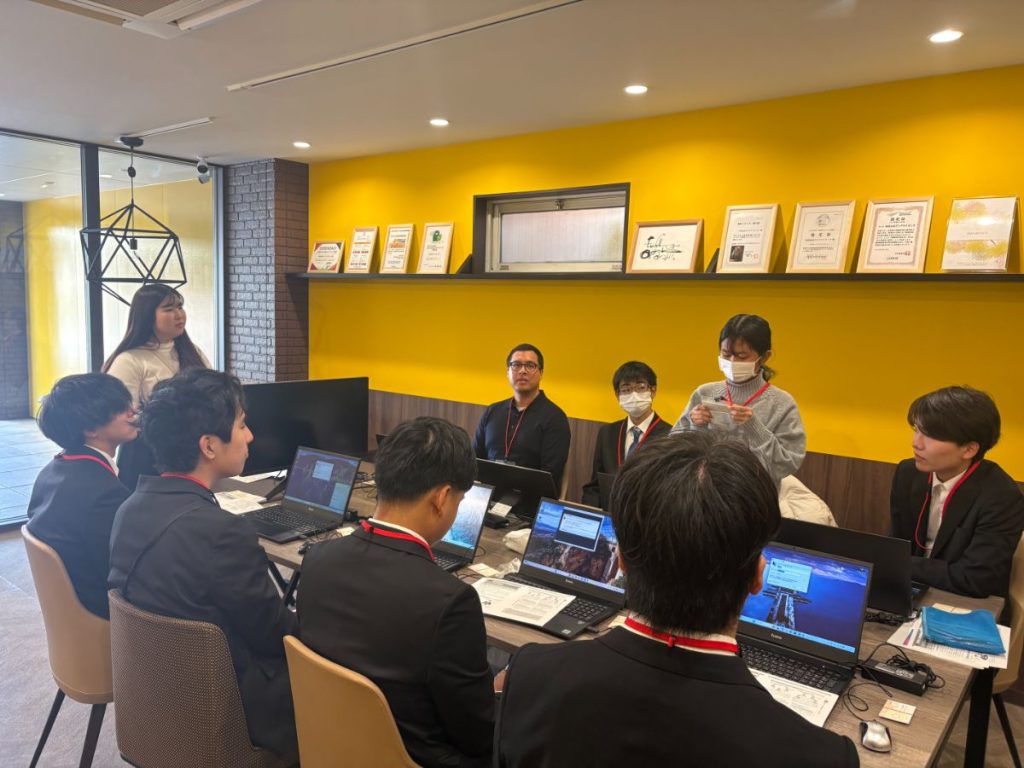
At Dandelions, we regularly hold communication events to deepen mutual understanding among team members and build stronger collaboration. These events and discussions take place in a relaxed, café-like atmosphere that transcends departments and job titles—just like chatting over coffee. That’s why we call this initiative “Dandelions Café.”
This time, the theme was “What Makes a Company One I’d Want to Stay With.” Teams spent about two hours researching and discussing the topic, followed by presentations from each group.
Ideas born from diverse perspectives
Through the presentations, we got a glimpse into how each member views the company in their daily work and what they truly think. The opinions stood out in two main categories: an active perspective, focusing on how we can contribute to the company’s growth, and a passive perspective, reflecting what kind of environment we expect from the company to keep working there.
Opinions from an active perspective
Opinions that reflect an awareness of the types of talent and actions needed for the company’s growth
such as creating systems—like organizing manuals—that prevent workload from being concentrated on specific employees
These reflected the perspectives of team members who are clearly mindful of the organization’s overall dynamics in their daily work.
Opinions from a passive perspective
Adequate salaries to keep up with rising living costs
Enhanced employee benefits such as transportation and housing allowances
Expansion of remote work options
The desire for a comfortable and secure work environment left a strong impression.
There were also some unique ideas!
Lavish rewards for perfect attendance each month
A system that allows employees to bring their pets to work
Some suggestions aimed at making the company atmosphere more enjoyable brought smiles to our faces.
A discussion that led to new insights and learning
Through this theme, we discovered just how much perspectives can differ depending on one’s role and experience—even within the same company. It felt like a valuable opportunity for both leadership and younger team members to understand each other’s ways of thinking.
Differences in opinions can sometimes appear as gaps, but looking at it another way, they’re simply different expressions of the same desire—to make the company even better. This discussion offered valuable insights for Dandelions to continue growing and evolving.
After the discussion, we had our usual social gathering.
At Dandelions, we’ll continue to value open dialogue across all roles and positions, as we work together to create a company that’s not only easier to work in, but also a place where everyone can grow even more.
As part of our engineer blog, we’d like to share what we’ve been learning day by day. This time, it’s Team 2, focusing on low-code development.
This Time’s Theme: ‘PDF Output Using Ultimate PDF
This time, we’ll show you how to export screen data within OutSystems as a PDF.
What is Ultimate PDF?
Ultimate PDF is one of the Forge components available in OutSystems. It allows you to export web pages (HTML + CSS) as PDFs. For example, you can generate PDFs of formatted content like invoices, reports, business cards, and forms.
Installing Ultimate PDF
Launch Service Studio, search for ‘Ultimate PDF’ via Browse Forge, and install it.
Adding References to the Module
Open the module you want to use, go to Manage Dependencies (CTRL+Q), select the necessary elements from Ultimate PDF, and click the Apply button. (This time, we selected PrintLayout, HideOnPrint, and PrintToPDF_Advanced.)
Descriptions of each element are as follows.
・PrintLayout: A layout template used to optimize screens for printing or PDF output.
・HideOnPrint: A CSS class (style setting) for screen design that, as the name suggests, hides specific elements during printing.
・PrintToPDF_Advanced: An advanced function that allows for more detailed settings when converting HTML screens (web pages) into PDFs.
Creating a Screen for Output
To create a screen for output, follow the same steps as when creating a regular Screen. Place ‘PrintLayout’ on the screen and design the layout you want to export as a PDF.
For any text you don’t want to appear in the PDF output, add ‘HideOnPrint’ to the screen and place the text inside it.
Creating a Server Action for PDF Output
This time, we’ll place an output button on the screen we created earlier and set up a Server Action that triggers a download when the button is pressed.
The properties for each action are as follows ・PrintToPDF_Advanced: Under Action, set the URL of the screen you want to export (in this case, we’re using the current screen’s URL), the PDF page size, and the PDF margins.
*We didn’t use it this time, but in Environment, you can finely control HTML rendering methods, wait conditions, and CSS application settings.
・Download: Under Action, set the return value from PrintToPDF_Advanced and the name of the PDF.
Here is the PDF we actually generated.
*Text that wasn’t meant to be output has been removed.
Important Notes
・Be careful when choosing between Client Action and Server Action. Since PDF generation is generally handled on the server side, calling it from a Client Action by mistake may result in it not working properly.
・Always enclose the FileName in double quotation marks (“”).If not specified like \”Test.pdf\”, it will result in an error
・Screens with a large amount of information are more likely to time out. If there are many tables or images, PDF generation may take longer.
Summary
In this article, we introduced how to generate PDF files from OutSystems using Ultimate PDF. Since it can also output images and graphs, be sure to try it out in apps that generate reports or forms. Team 2 will continue to share technical blogs using low-code tools like OutSystems, so stay tuned!