Java has evolved significantly over the past decade. While many developers still associate Java with verbose syntax and heavy boilerplate, modern Java versions (Java 8 and beyond) introduced powerful features that make development cleaner, safer, and more expressive.
In this article, we’ll explore five useful Java features that every developer should know and start using today.
1. Lambda Expressions
Lambda expressions allow you to write concise, functional-style code. They eliminate the need for anonymous classes and make your code easier to read.
Before Java 8:
Runnable r = new Runnable() {
public void run() {
System.out.println("Hello World");
}
};
With Lambda:
Runnable r = () -> System.out.println("Hello World");
Why It’s Useful:
Reduces boilerplate code
Improves readability
Encourages functional programming
Lambda expressions are widely used with Streams, collections, and event handling.
2. Stream API
The Stream API allows you to process collections in a declarative and functional style.
As a tech blog, I’d like to share what I’ve been learning recently. This time, I’ll walk you through how I set up a Vue 3 development environment using Cursor, a code editor with built-in AI features.
Requirements
・Node.js ・Cursor ・Vue3 ・Vue Router
Installing Node.js
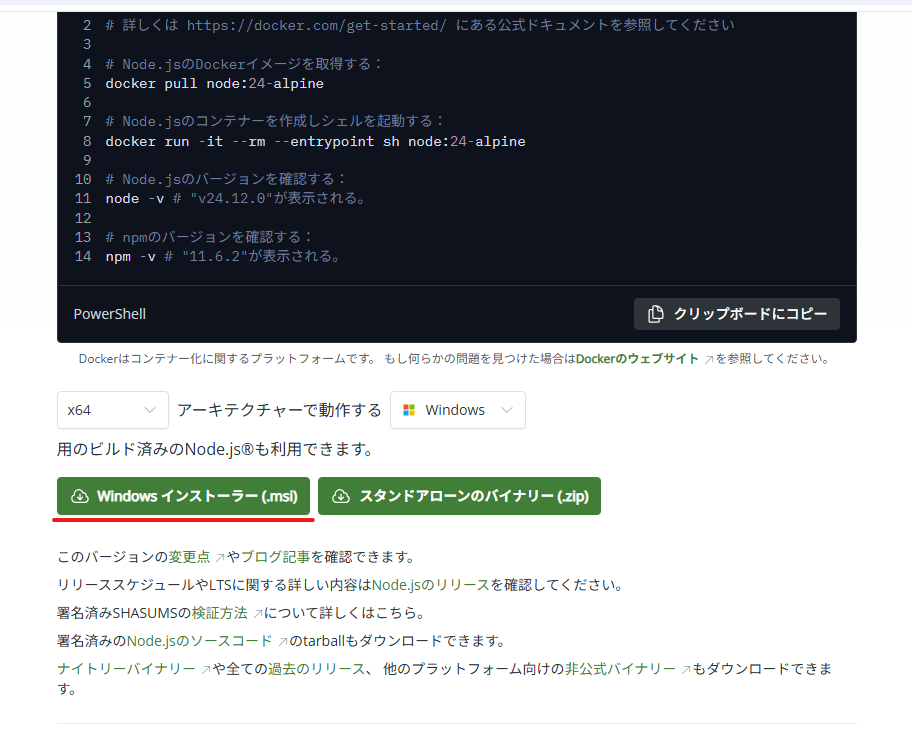
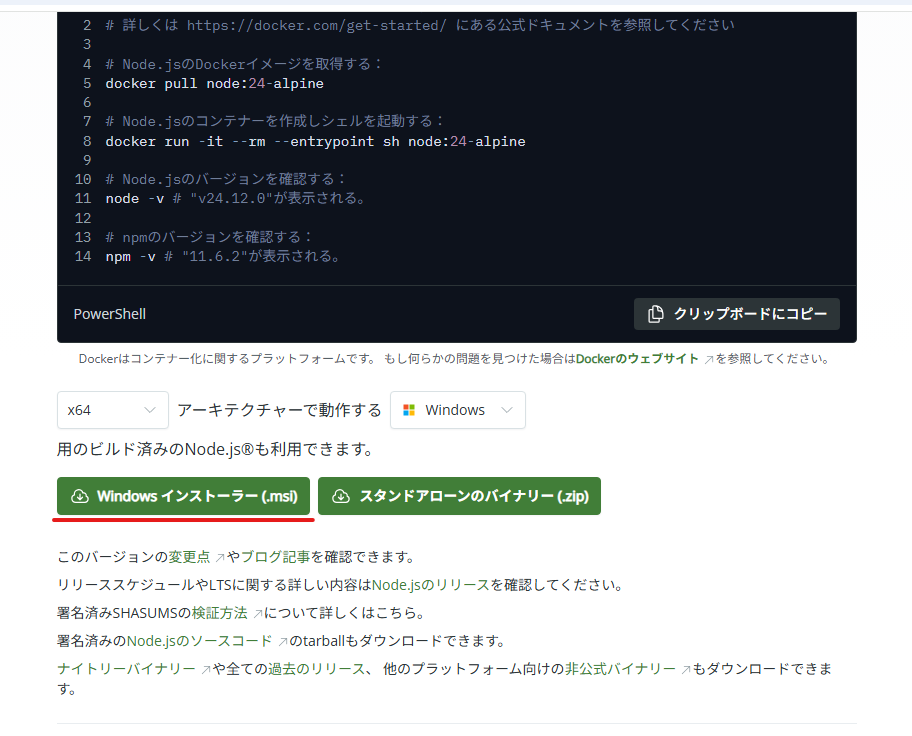
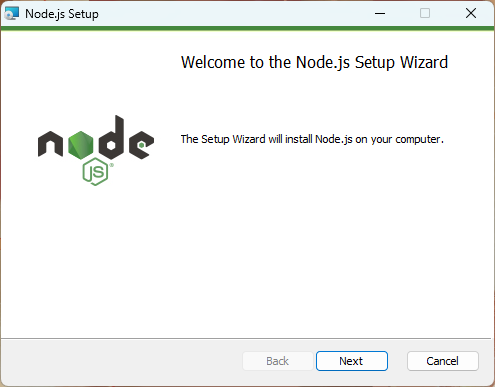
Download the installer from the official website The latest version at the time of writing is 24.12.0 (LTS) Download the Windows installer
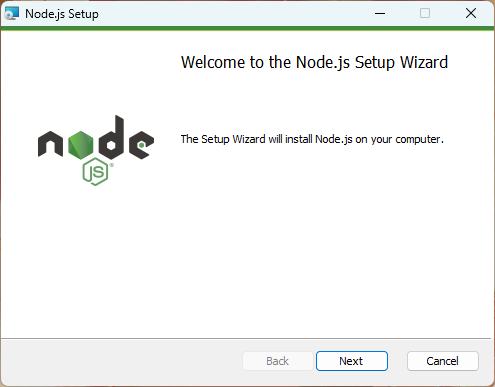
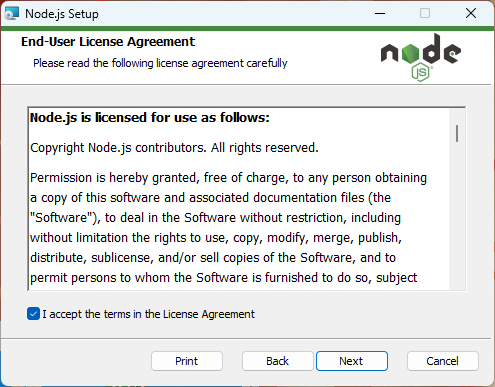
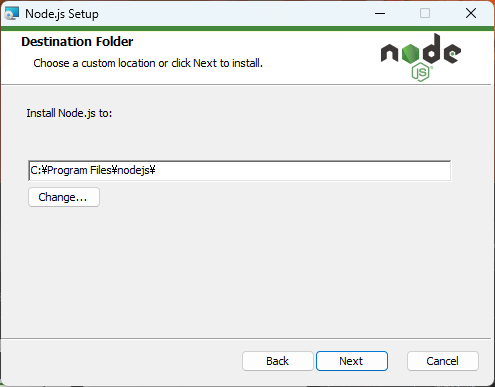
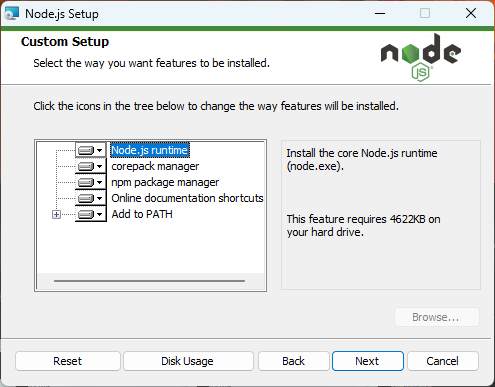
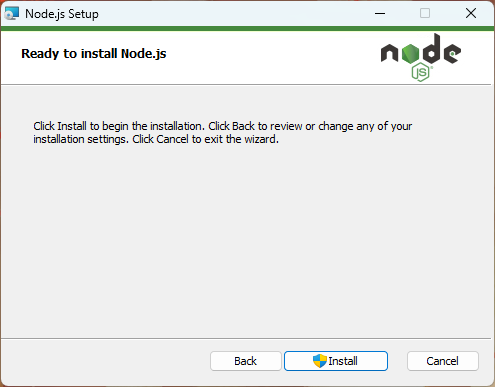
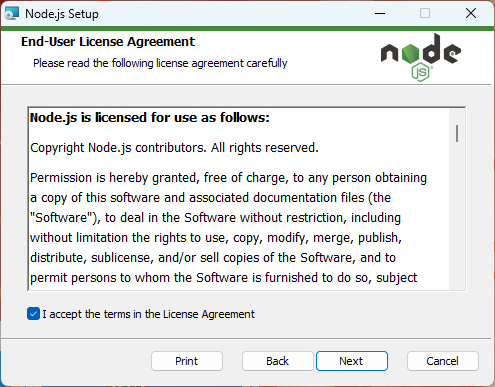
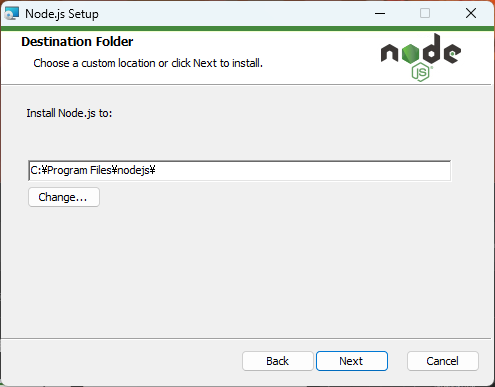
Follow the installation wizard. If you don’t have any specific preferences, just clicking ‘Next’ through all the steps is fine.
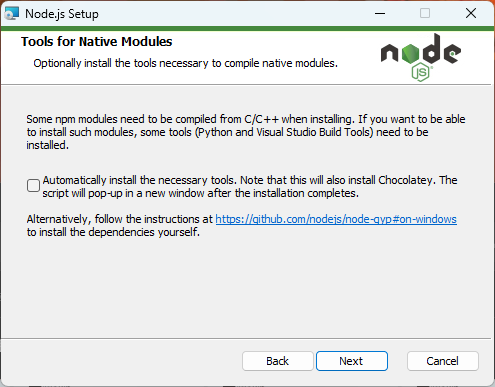
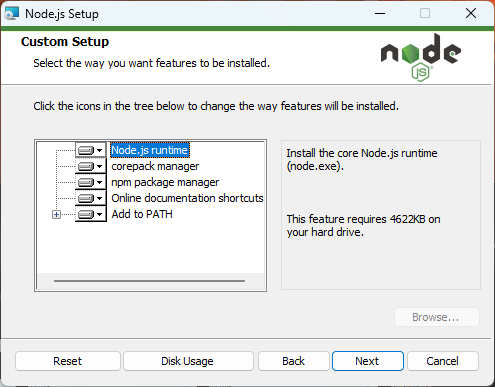
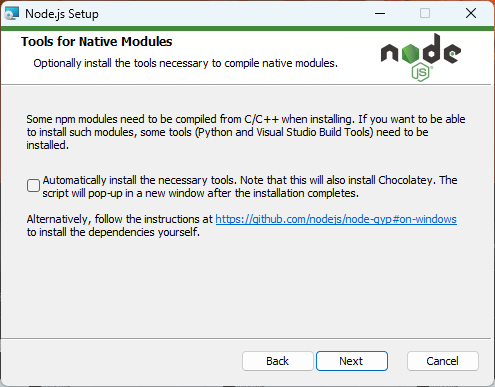
You can basically keep clicking ‘Next’ here as well, but if you plan to use various Node.js modules in the future, it’s a good idea to check this option. However, it’s not necessary for this setup.
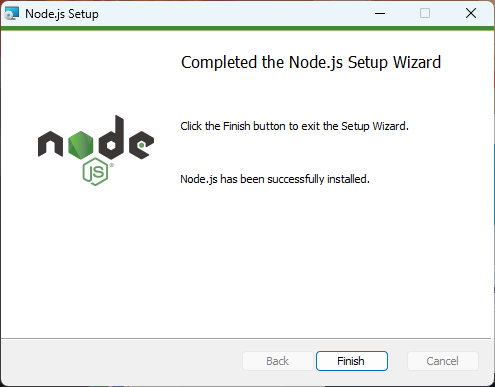
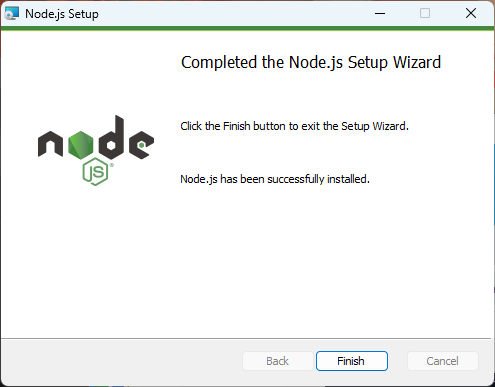
That’s it! Node.js is now set up and ready to go.
Installing Cursor
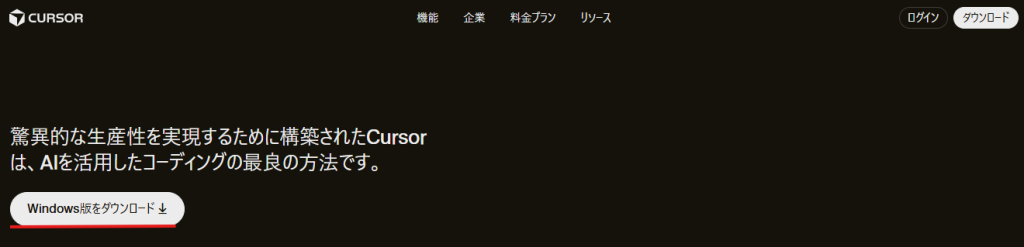
Download the installer from the official website. The latest version at the time of writing is 2.2.44. If you don’t have any specific preferences, you can proceed with the default settings during installation. After installation, you’ll be prompted to log in, so it’s a good idea to create an account on the official website beforehand for a smoother setup.
Adding Extensions to Cursor
Add the following extensions to Cursor
Japanese Language Pack for VS Code ・Japanese localization
npm ・Support for npm
Npm Intellisense ・Auto-completion for npm modules in import statements
Vue (Official) ・Support for Vue
Vite ・Support for Vue development server
Creating a Vue 3 Project
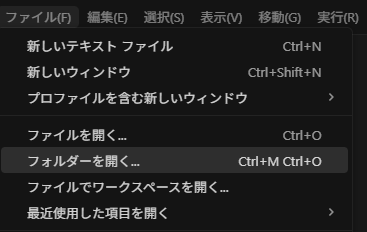
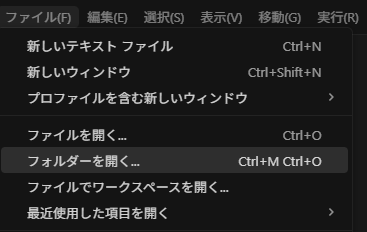
Go to File > Open Folder and open the location where you want to create your project.
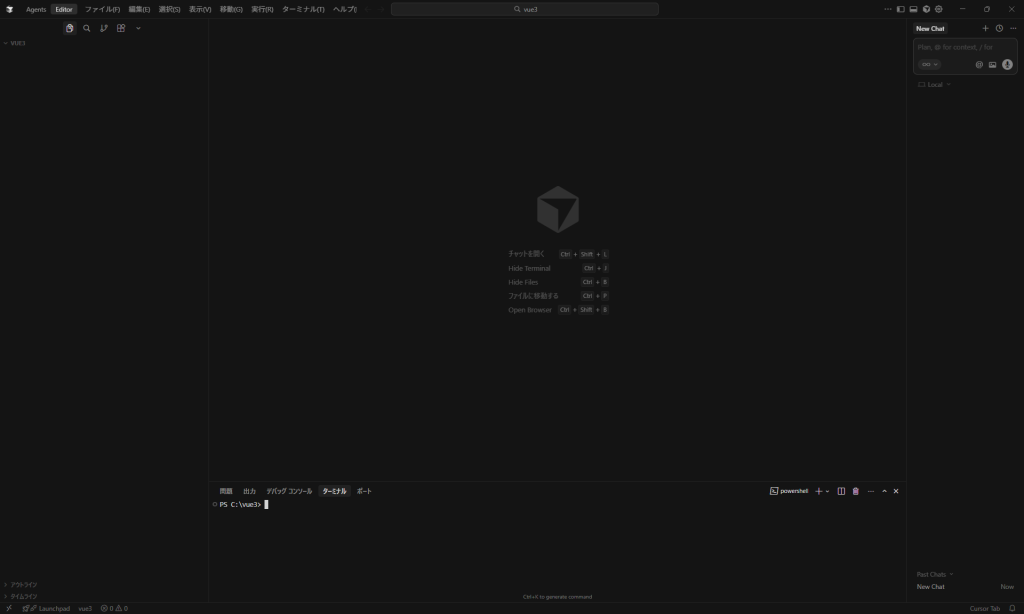
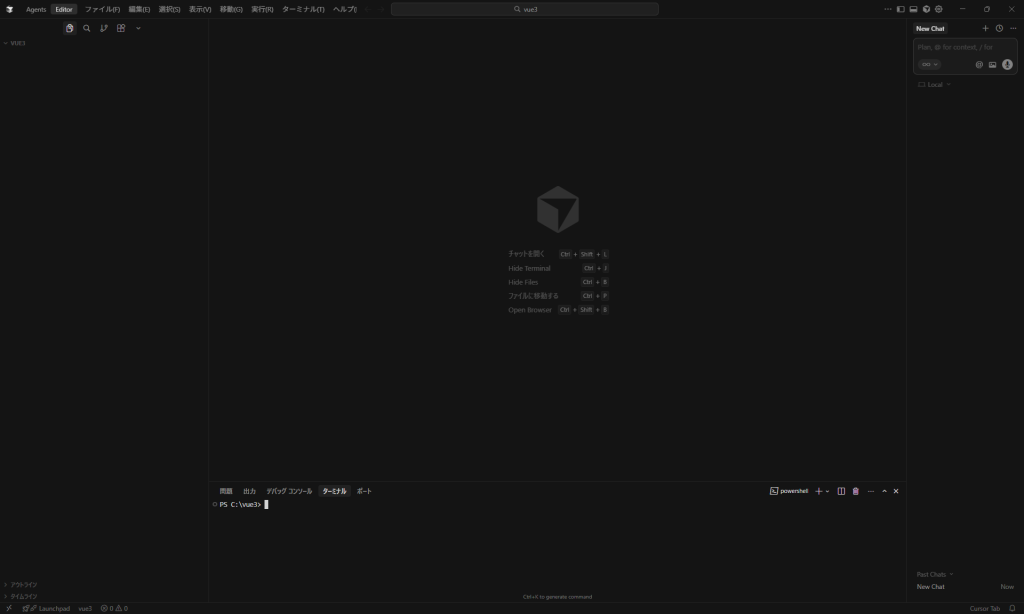
Open the terminal with [Ctrl + @]
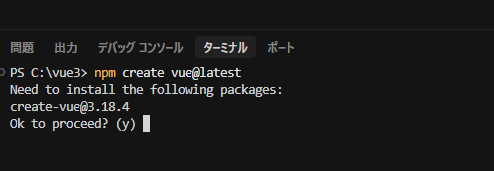
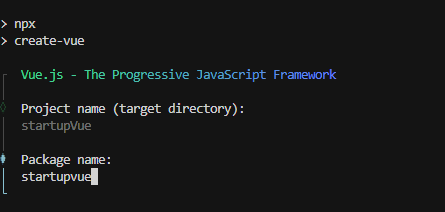
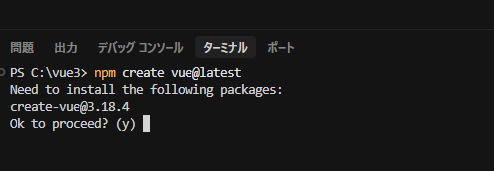
Run the following command in the terminal to create the project
npm create vue@latest
Type ‘y’
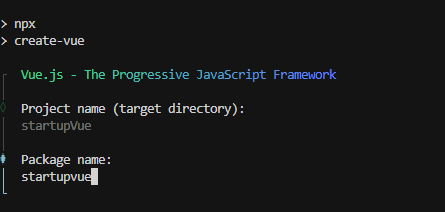
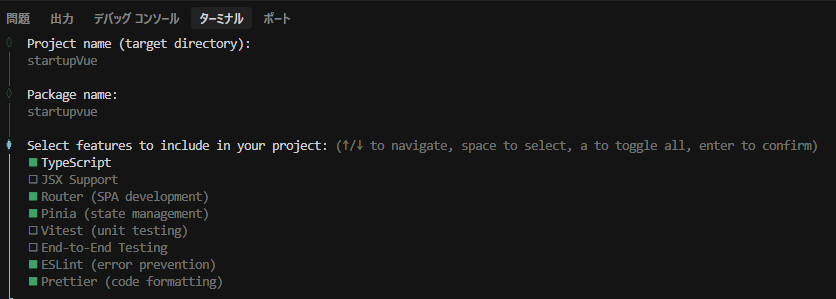
Enter your preferred project name and package name.
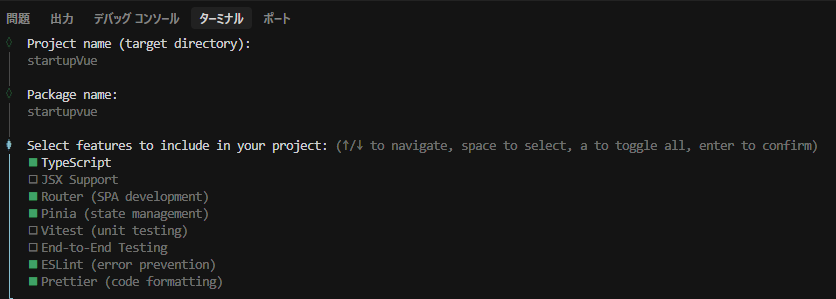
Select the packages you want to add.
Give it a try
TypeScript ・Must be added
JSX Support ・Enables writing Vue in JSX/TSX syntax. Add this if you prefer a React-like style. ・Turned off for this setup.
Router ・Essential for page navigation ・Must be added
Pinia ・State management library ・Add if you need to manage login info, user data, or shared state
Vitest Add if you want to automate unit testing
End-to-End Testing ・Add if you want to automate tests that include browser interactions
ESLint ・Linting tool to check code style ・Must be added
Prettier ・Automatically formats your code ・Must be added
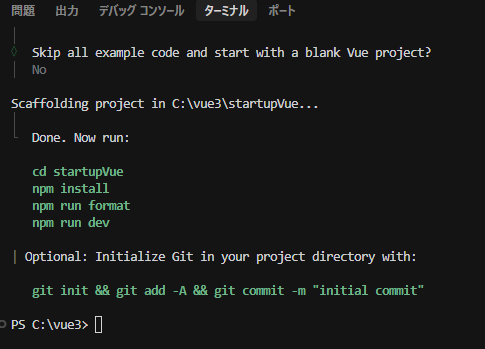
You’ll be asked whether to enable experimental features. Since we won’t be using them this time, just press Enter to keep the default.
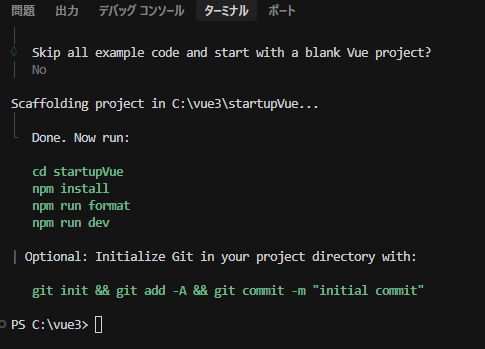
You’ll be asked whether to create the project without sample code. For this setup, select ‘No’ to include the sample code.
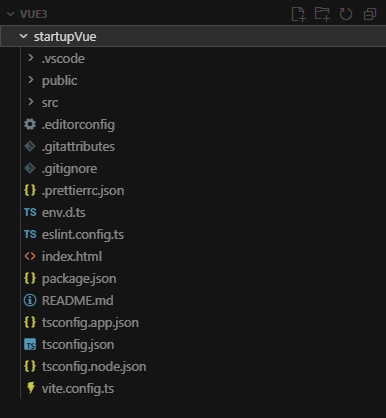
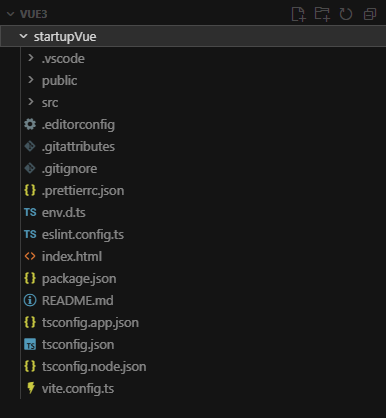
The project creation will begin, and once it’s complete, a project folder will be generated.
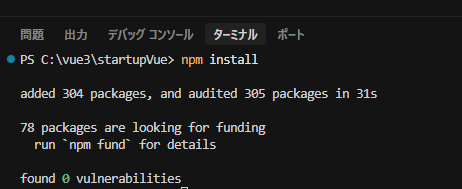
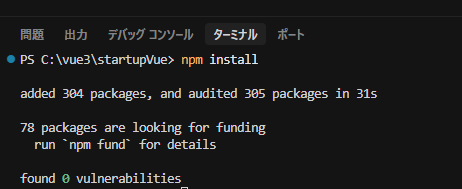
Reopen the created project folder in Cursor and run the following command
PS C:\vue3\startupVue> npm install
Once the dependencies are installed, the project setup is complete.
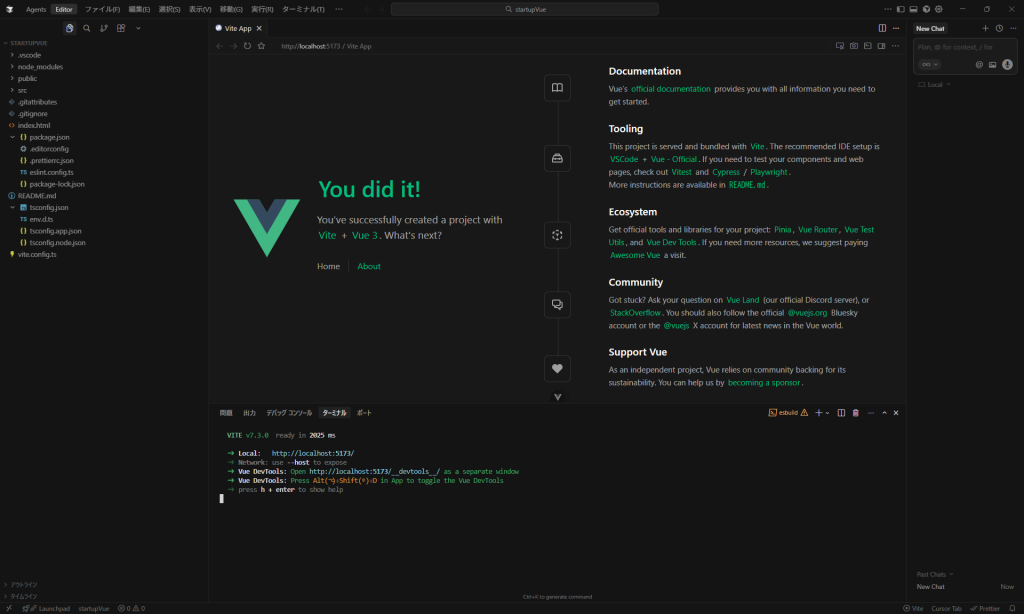
Starting the Vue app
Run the following command to start the development server
npm run dev
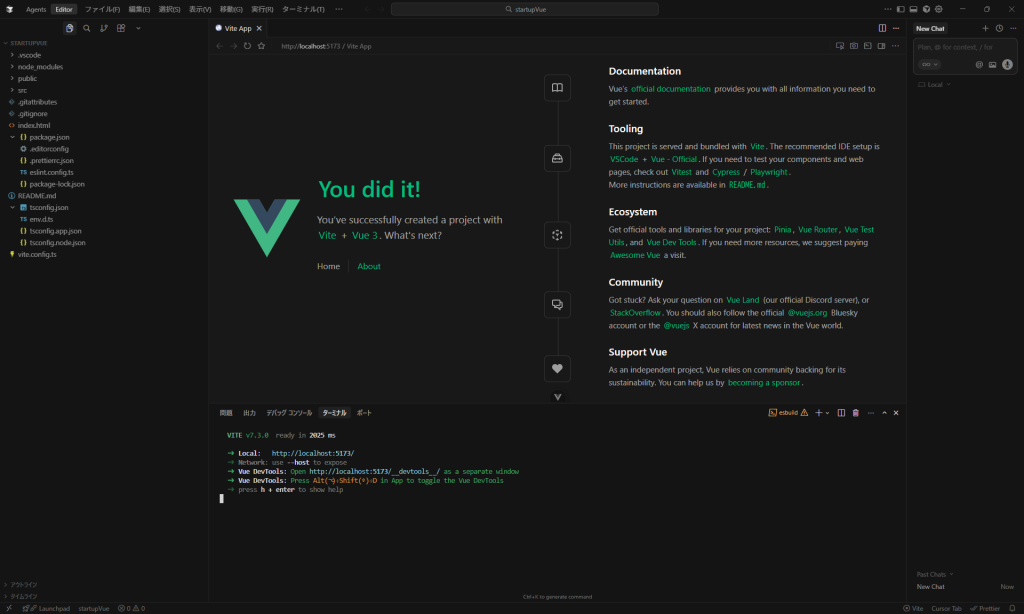
If the launch is successful, the following screen will be displayed
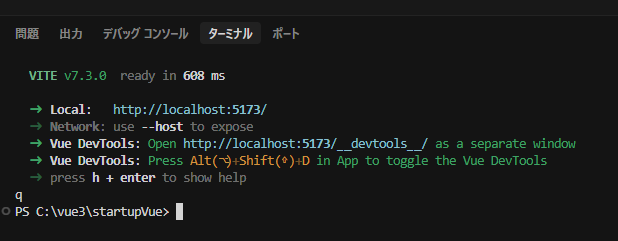
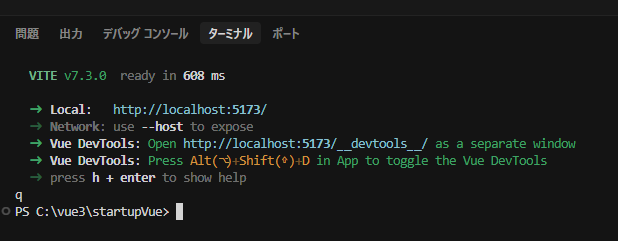
You can stop the server by typing [q] in the console.
That’s it! We’ve set up a Vue 3 development environment using Cursor. If this sparked your interest, try setting it up on your own PC too!
In this engineer blog, I’ll introduce what I’ve been learning recently. This time, I’ll explain automatic column generation in OutSystems Data Grid.
OutSystems Data Grid is a spreadsheet-like grid that can be displayed and interacted with within an OutSystems application.
This article assumes prior knowledge of OutSystems Data Grid.
Problem Statement
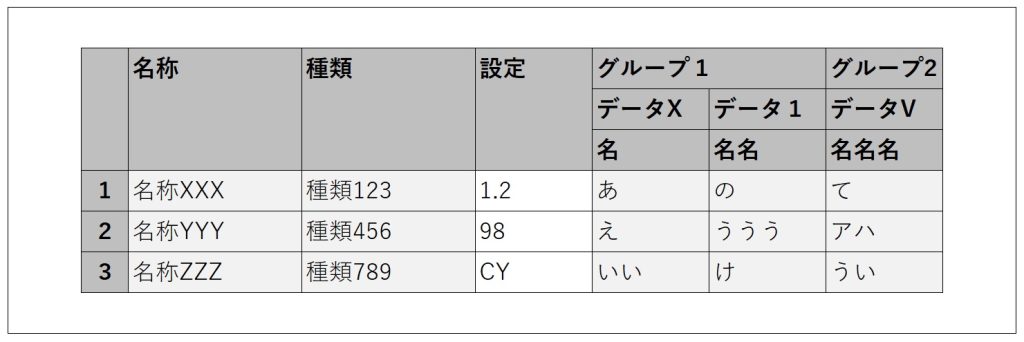
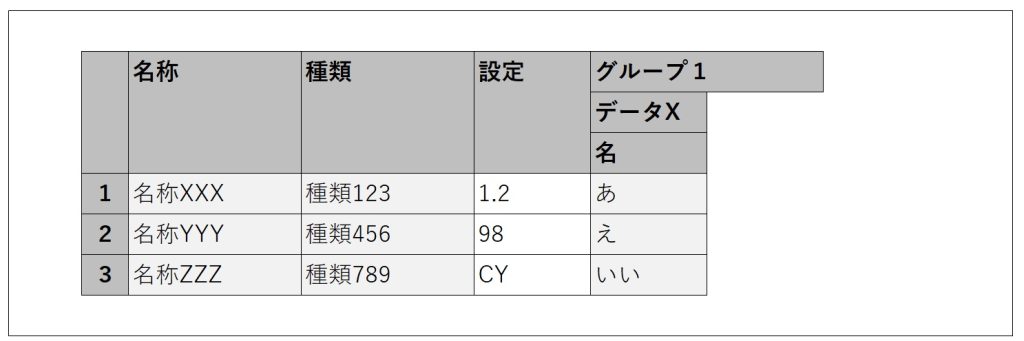
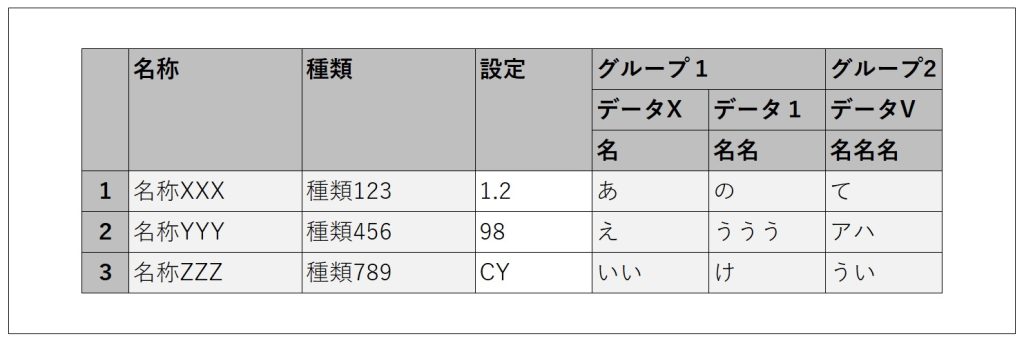
For example, let’s say we have a grid like the one below.
The usual way to create it would be as follows.
Set the data to be displayed into a Structure that matches the grid layout, convert it into a list, transform it into JSON using ArrangeData, and set the resulting JSON as the grid’s data.
Place a column widget on the grid for each column to be displayed, and configure each header, column width, display conditions, and so on.
For a grid with six columns like the one above, it’s not too difficult. However, if the number of columns to display is variable, creating it becomes more challenging.
You need to determine the maximum number of columns to display, then prepare the Structure from step 1 and the column widgets from step 2 to match that maximum number. Additionally, you must control the visibility of each column based on how many you actually want to display. As a result, all the columns up to the maximum exist, but only the desired number of columns are visible.
Especially for step 2, if the grid’s configuration is even slightly complex—such as having merged headers with dynamic labels—the amount of work required increases significantly.
If the maximum number is around 100, it might take some time, but it’s still manageable. However, I once faced a case where the maximum number reached nearly 1,500. At that time, I looked into whether it was possible to generate the grid columns using JavaScript.
As a result of the automatic generation, step 1 of the usual method still needs to be done as is, but step 2 becomes much simpler.
Prerequisites
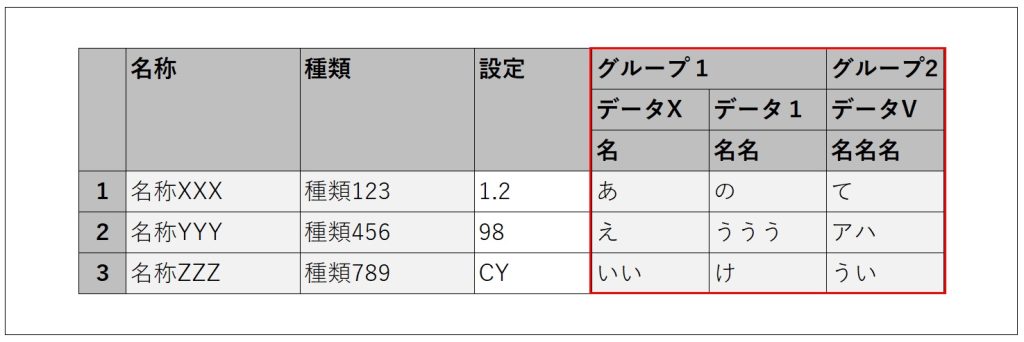
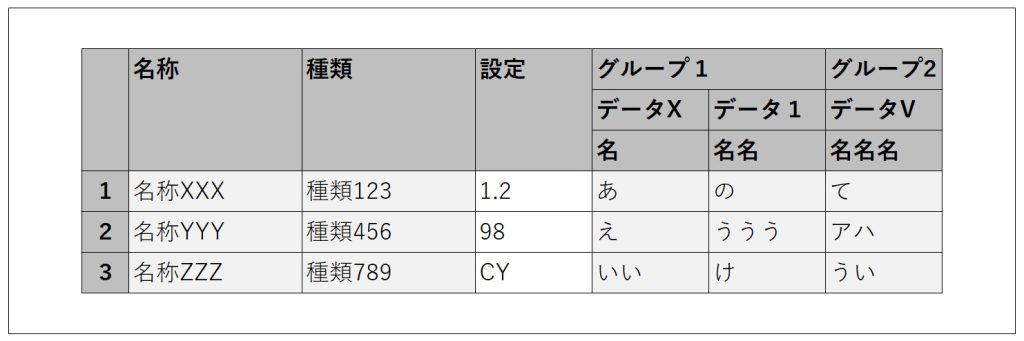
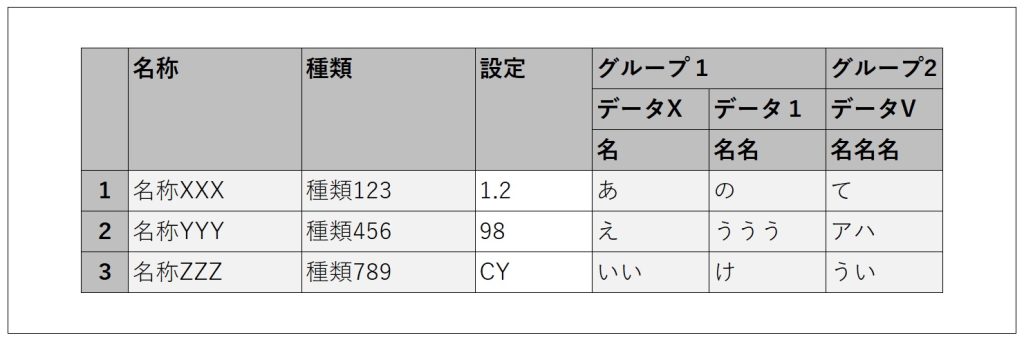
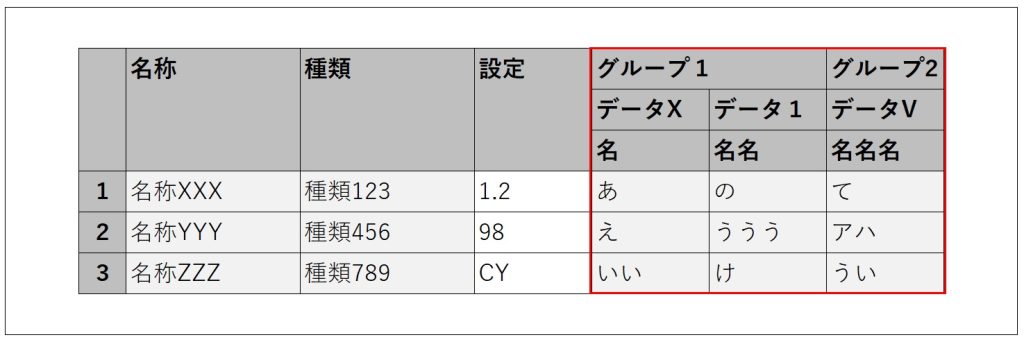
In a grid like the one below, the columns outlined in red are the target for automatic generation. (The left three columns are placed as usual. The auto-generated columns are on the right.)
The cells in the auto-generated columns will be set to read-only. The column order in the grid will be fixed and cannot be changed.
The data to be displayed in the grid has already been retrieved and is set to the grid as described in step ① above.
The header labels (such as ‘グループ1’, ‘データX’, ‘名名名’, etc.) are dynamic and have already been retrieved in a format that can be passed into JavaScript. (In the sample JavaScript code, these input parts will be shown in bold.)
In the implementation JavaScript, we use a variable called dataGrid. You can obtain dataGrid as shown below. (Let gridId be the ID of the configured grid.)
var dataGrid = OutSystems.GridAPI.GridManager.GetGridById('gridId').provider;
Preliminary Research
From the link below, I found that it’s possible to push columns into dataGrid.columns.
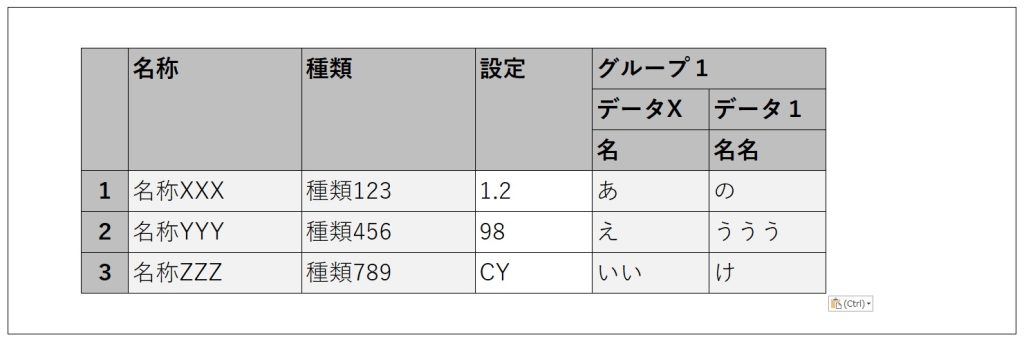
Upon further investigation of dataGrid, I found that in addition to columns, there is also columnGroups. I thought that by pushing to columnGroups, it might be possible to create grouped, merged header columns.
Implementation Flow
In the ‘On After Fetch’ action after retrieving the data, implement it as follows.
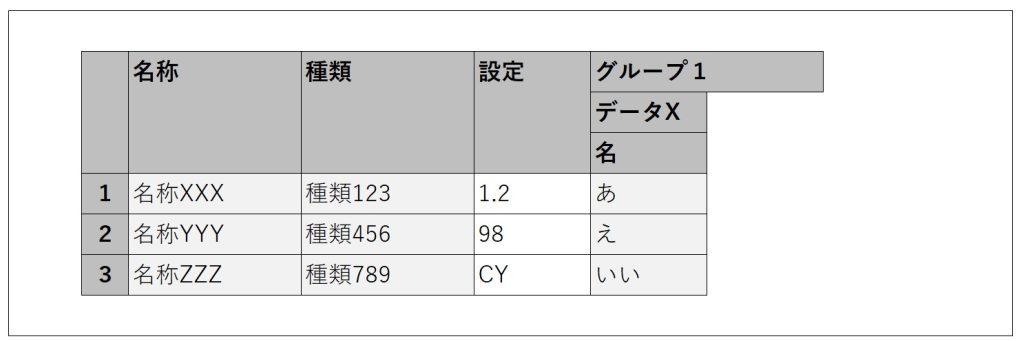
The first column of ‘グループ1’
// Create the element to push
var newColGroup = new wijmo.grid.ColumnGroup (
{header: 'グループ1', align: 'left', columns: [
{header: 'データX', align: 'left', columns: [
{header: '名', binding: 'Data1', width: 100, align: 'left', isReadOnly: true}
]}
]}
)
// Push newColGroup into columnGroups
dataGrid.columnGroups.push(newColGroup);
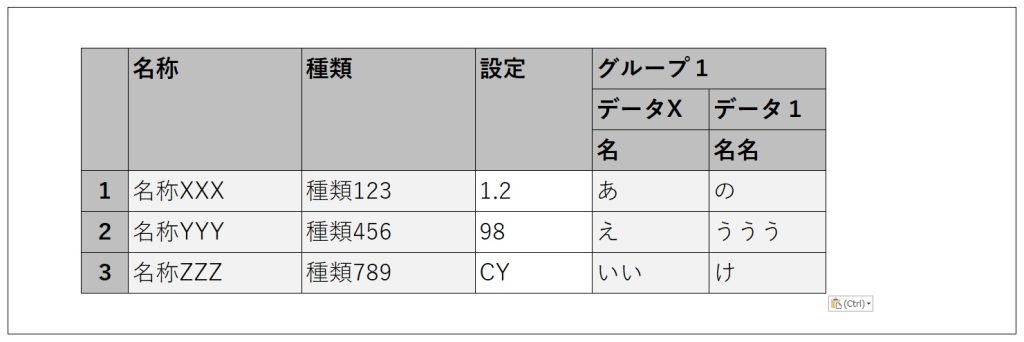
The second column of ‘グループ1’
// Create the element to push
var newColGroup = new wijmo.grid.ColumnGroup (
{header: 'データ1', align: 'left', columns: [
{header: '名名', binding: 'Data2', width: 100, align: 'left', isReadOnly: true}
]}
)
// Push newColGroup into the columns of the target columnGroup
// columnGroups[3] refers to the created "Group 1", which is at index 3 in columnGroups
dataGrid.columnGroups[3].columns.push(newColGroup);
the ‘グループ2’ column
// Create the element to push
var newColGroup = new wijmo.grid.ColumnGroup (
{header: 'グループ2', align: 'left', columns: [
{header: 'データV', align: 'left', columns: [
{header: '名名名', binding: 'Data3', width: 100, align: 'left', isReadOnly: true}
]}
]}
)
// Push newColGroup to columnGroups
dataGrid.columnGroups.push(newColGroup);
As shown above, grouped columns with merged headers are created one by one. By adjusting the structure of newColGroup and the target of the push accordingly, it should be possible to create column groups with different structures.
additional support
When automatically generating columns, the following two points must be taken into consideration.
The variable dataGrid represents the grid obtained as a JavaScript object. At the time the ‘On After Fetch’ action is executed after data retrieval, the grid must already exist. One way to handle this is to set the data retrieval action’s timing to ‘Only on Demand’ and execute it in the ‘OnReady’ action.
If the grid contains columns with editable cells, a post-edit check is performed on the entire row to determine whether any cells were edited. However, if this check tries to access the automatically generated columns, it will result in an error. (In the grid used as an example in this article, the ‘Settings’ column is editable.)
To handle this, adjust the edit check in the grid’s ‘OnInitialize’ action using JavaScript as shown below.
// Regular cell edit check
var originalCheck = OutSystems.GridAPI.GridManager.GetGridById('gridId').features.dirtyMark._isDirtyCell;
// Adjust the check
// Immediately treat cells in auto-generated columns as unedited
// Since columns with index 3 and above are auto-generated, control with "columnIndex > 2"
var newCheck = function (rowIndex, columnIndex) {
if (columnIndex > 2) {
return false;
} else {
var checkResult = originalCheck.call(this, rowIndex, columnIndex);
return checkResult;
}
}
// Apply the adjusted check to the grid
OutSystems.GridAPI.GridManager.GetGridById('gridId').features.dirtyMark._isDirtyCell = newCheck;
変数dataGridは、グリッドをJavaScriptオブジェクトとして取得したものになります。データ取得後のOn After Fetchアクションが実行される時点で、グリッドが存在しなければなりません。一つの対応方法として、データ取得アクションのタイミングをOnly on Demandに設定して、OnReadyアクションで実行することができます。
As part of our engineer blog, we’d like to share what we’ve been learning day by day. This time, it’s Team 2, focusing on low-code development.
This Time’s Theme: ‘PDF Output Using Ultimate PDF
This time, we’ll show you how to export screen data within OutSystems as a PDF.
What is Ultimate PDF?
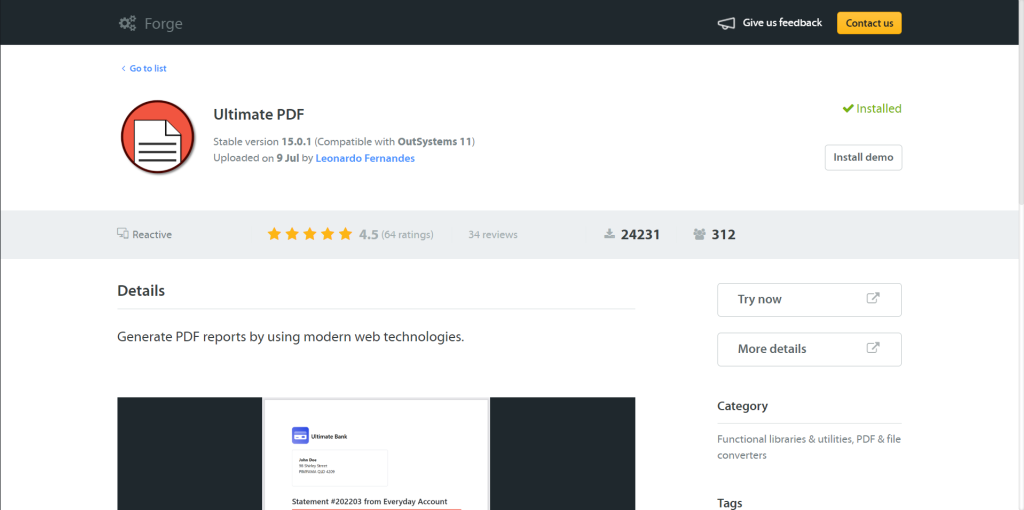
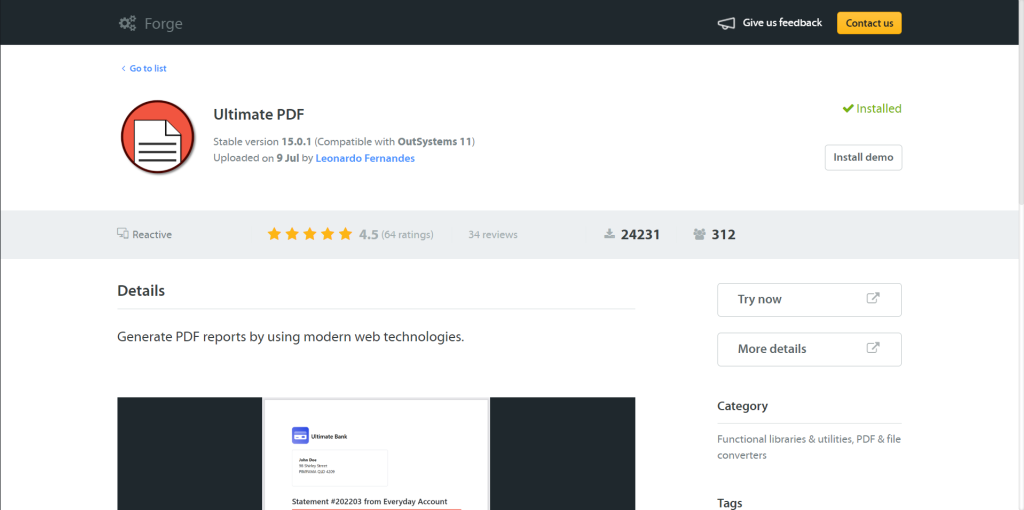
Ultimate PDF is one of the Forge components available in OutSystems. It allows you to export web pages (HTML + CSS) as PDFs. For example, you can generate PDFs of formatted content like invoices, reports, business cards, and forms.
Installing Ultimate PDF
Launch Service Studio, search for ‘Ultimate PDF’ via Browse Forge, and install it.
Adding References to the Module
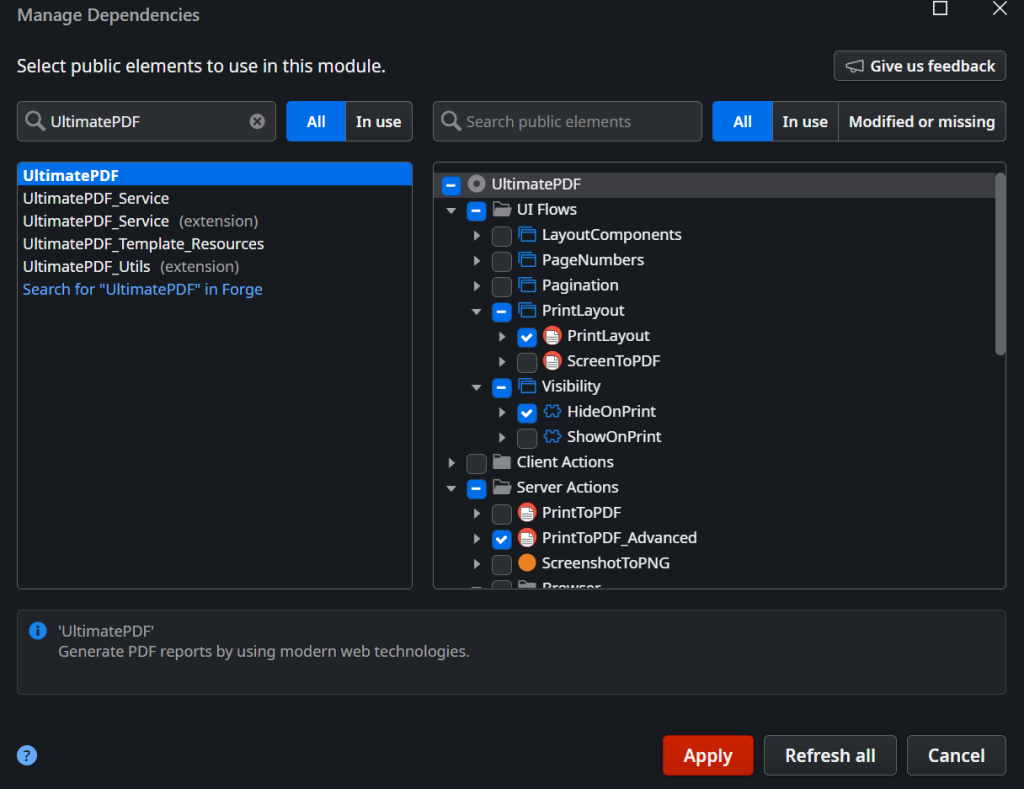
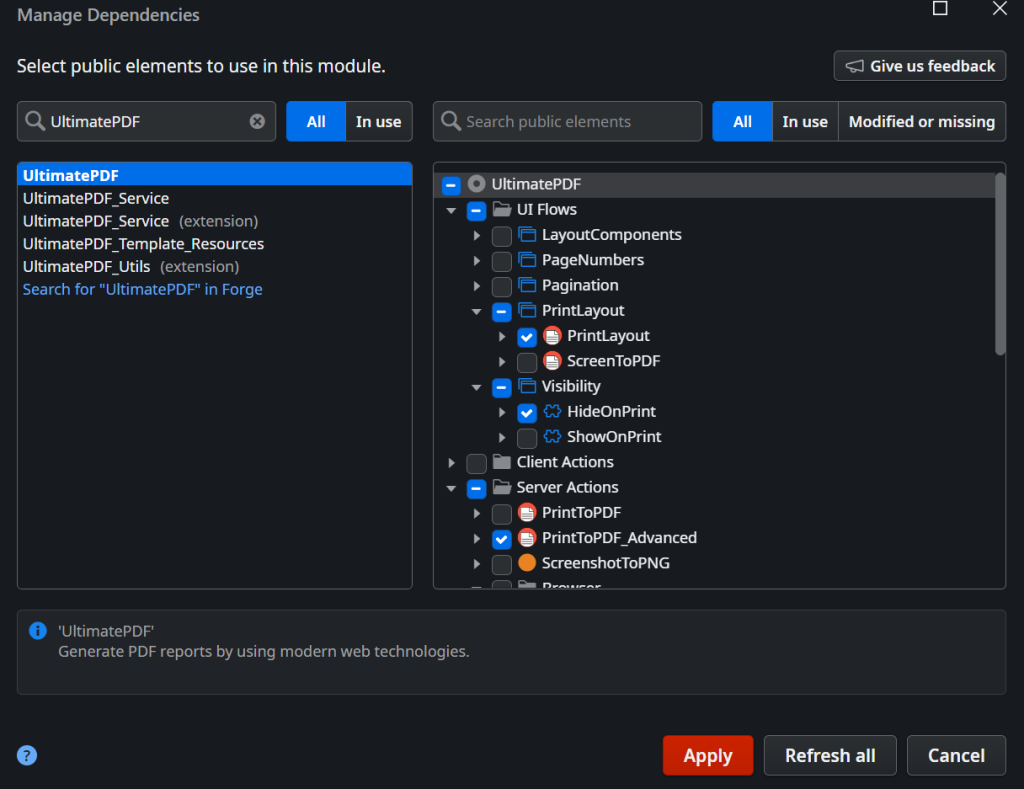
Open the module you want to use, go to Manage Dependencies (CTRL+Q), select the necessary elements from Ultimate PDF, and click the Apply button. (This time, we selected PrintLayout, HideOnPrint, and PrintToPDF_Advanced.)
Descriptions of each element are as follows.
・PrintLayout: A layout template used to optimize screens for printing or PDF output.
・HideOnPrint: A CSS class (style setting) for screen design that, as the name suggests, hides specific elements during printing.
・PrintToPDF_Advanced: An advanced function that allows for more detailed settings when converting HTML screens (web pages) into PDFs.
Creating a Screen for Output
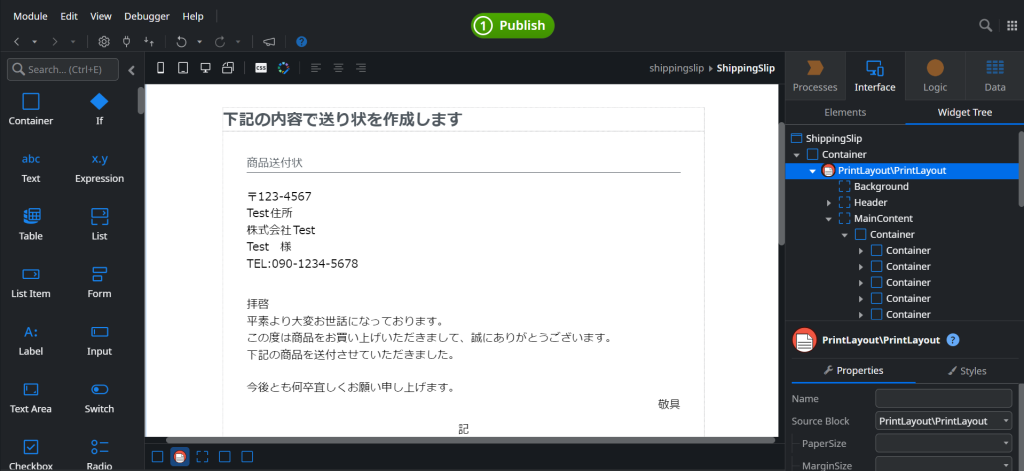
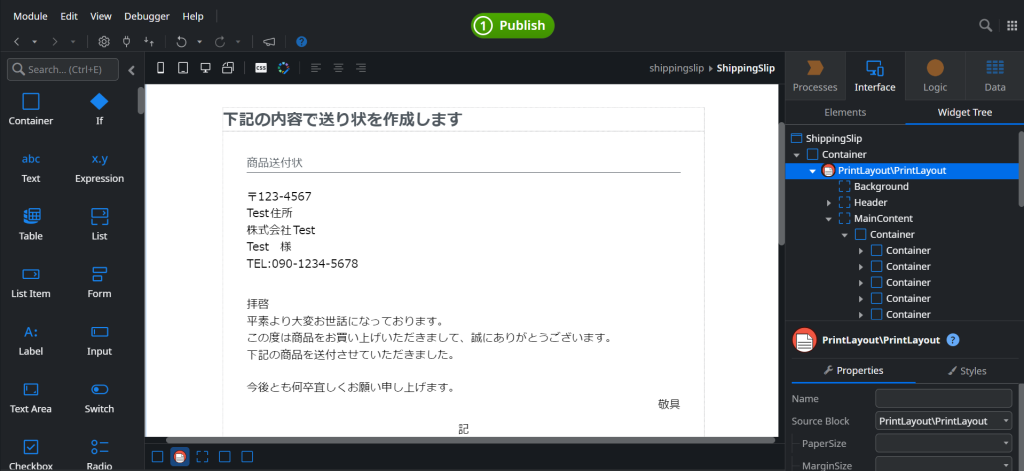
To create a screen for output, follow the same steps as when creating a regular Screen. Place ‘PrintLayout’ on the screen and design the layout you want to export as a PDF.
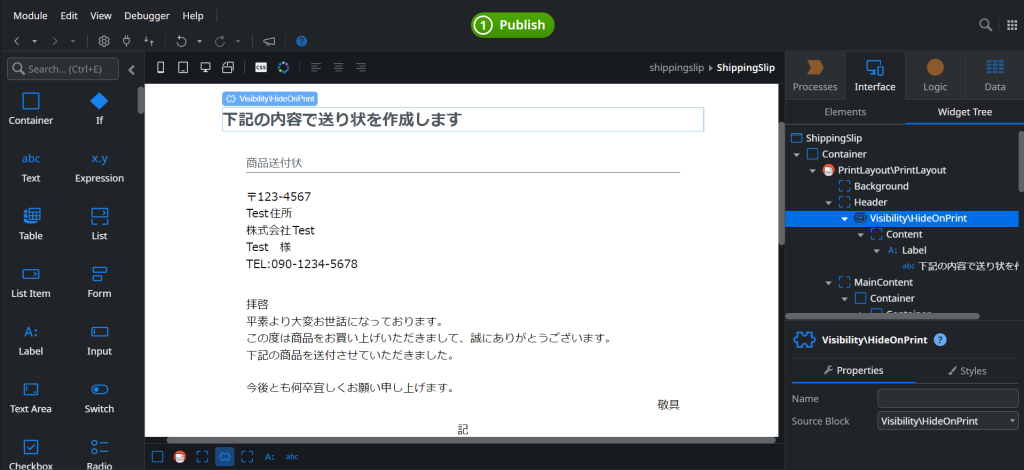
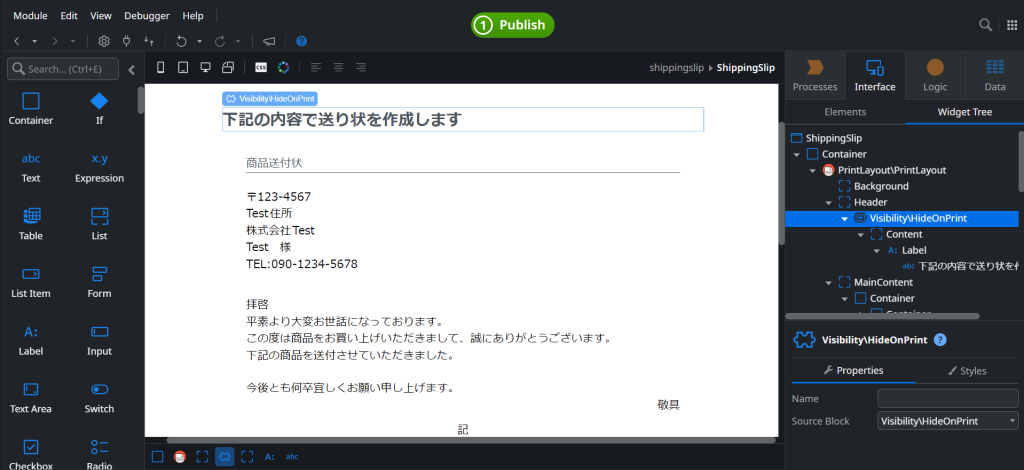
For any text you don’t want to appear in the PDF output, add ‘HideOnPrint’ to the screen and place the text inside it.
Creating a Server Action for PDF Output
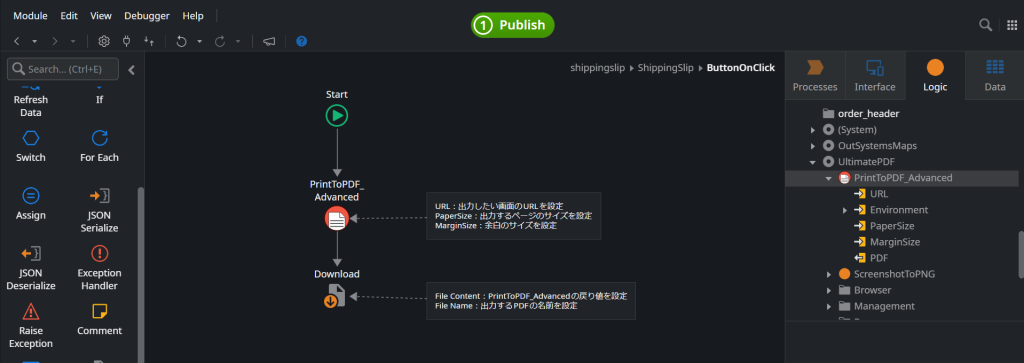
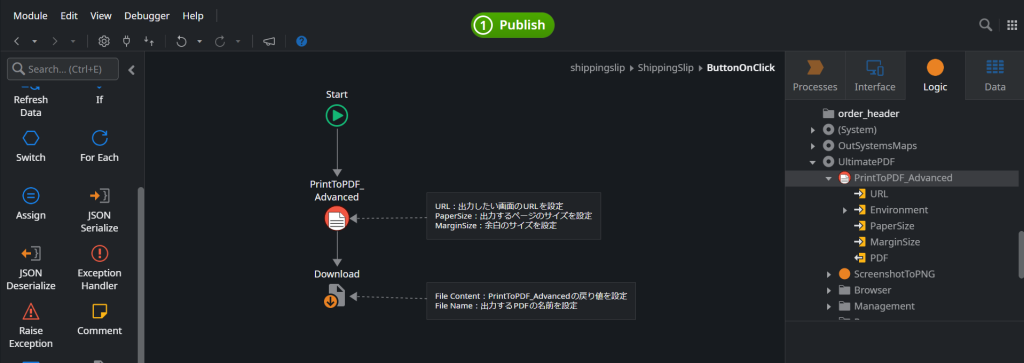
This time, we’ll place an output button on the screen we created earlier and set up a Server Action that triggers a download when the button is pressed.
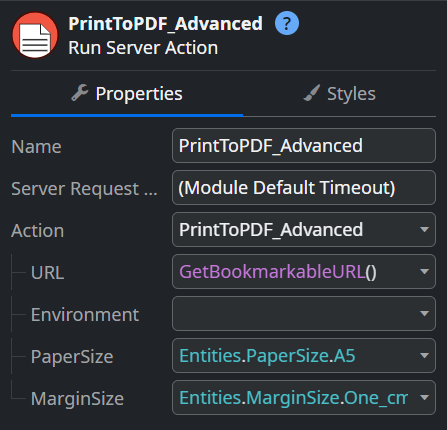
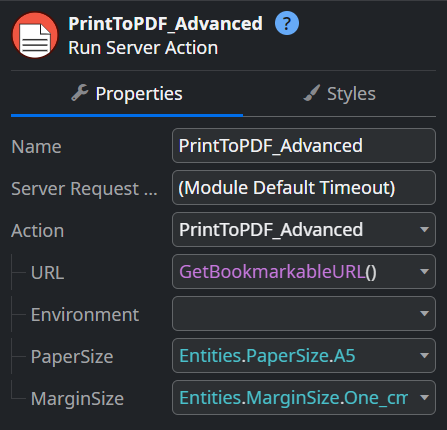
The properties for each action are as follows ・PrintToPDF_Advanced: Under Action, set the URL of the screen you want to export (in this case, we’re using the current screen’s URL), the PDF page size, and the PDF margins.
*We didn’t use it this time, but in Environment, you can finely control HTML rendering methods, wait conditions, and CSS application settings.
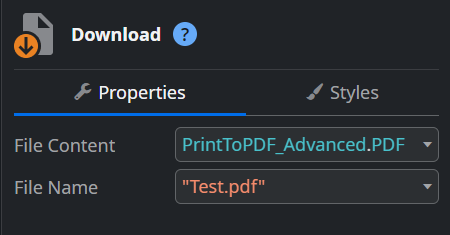
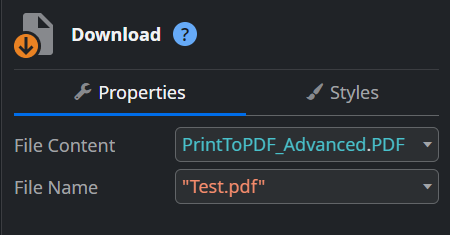
・Download: Under Action, set the return value from PrintToPDF_Advanced and the name of the PDF.
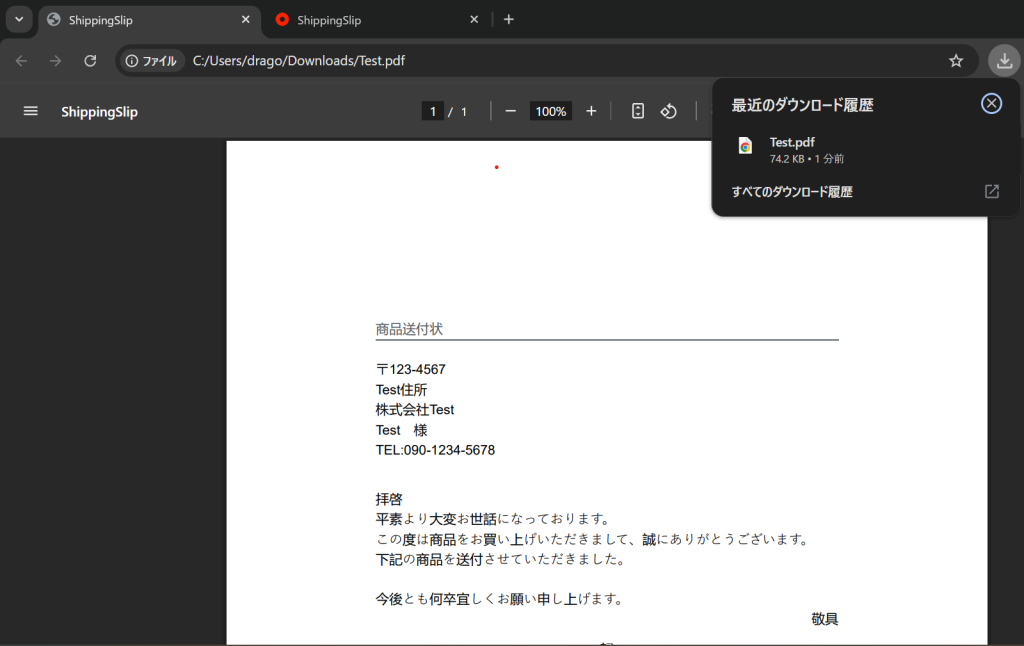
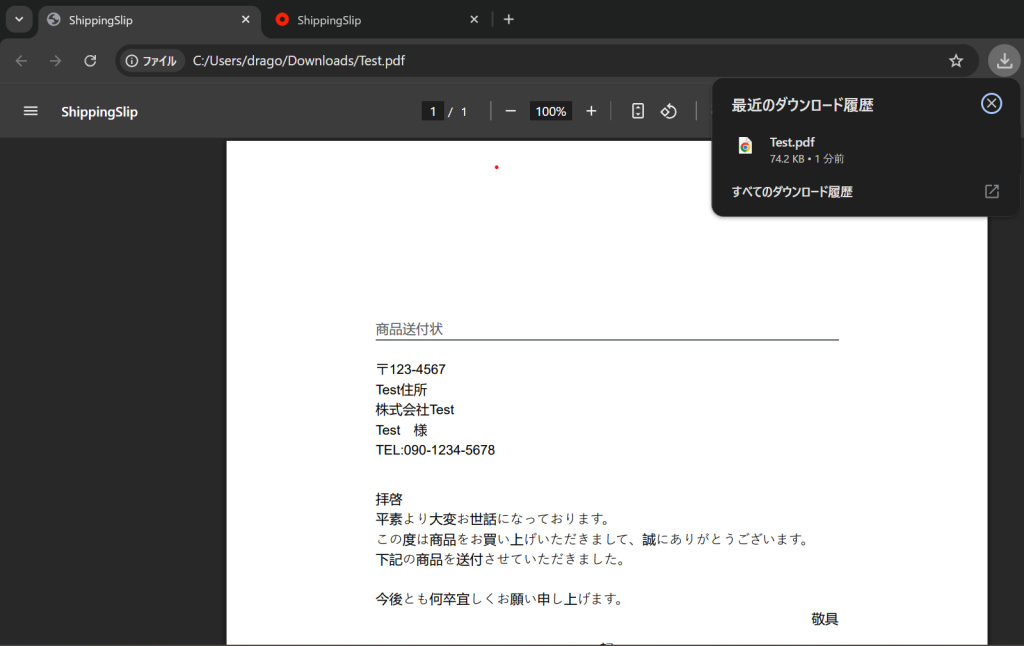
Here is the PDF we actually generated.
*Text that wasn’t meant to be output has been removed.
Important Notes
・Be careful when choosing between Client Action and Server Action. Since PDF generation is generally handled on the server side, calling it from a Client Action by mistake may result in it not working properly.
・Always enclose the FileName in double quotation marks (“”).If not specified like \”Test.pdf\”, it will result in an error
・Screens with a large amount of information are more likely to time out. If there are many tables or images, PDF generation may take longer.
Summary
In this article, we introduced how to generate PDF files from OutSystems using Ultimate PDF. Since it can also output images and graphs, be sure to try it out in apps that generate reports or forms. Team 2 will continue to share technical blogs using low-code tools like OutSystems, so stay tuned!
As an engineer’s blog, I’d like to share what I’m learning on a daily basis. This time, I’ll introduce the popular video generation tool Sora2.
■ From Books to AI──The Evolution of Information Retrieval
In the old days, learning a skill meant frequenting bookstores and libraries. It was an era of poring over thick technical manuals and taking time to understand them. Then the spread of the internet gave birth to a culture of “searching,” and soon “Googling” became commonplace. And now— People have entered the era of “asking AI.” In just a few decades, our relationship with knowledge has evolved this far.
■ How are you all using it?
Many people have tried out AI tools like ChatGPT, image generation AI, and voice synthesis tools. At Dandelions Japan, we’re already leveraging AI for video production for e-commerce sites. By incorporating AI-assisted video generation, we’ve significantly improved production costs and speed. AI is no longer just “research”—it’s become a “tool for the field.” And its adoption will only accelerate from here.
■ The Impact of SORA2’s “Life-Like Videos”
OpenAI’s “SORA2” is a technology that generates realistic videos from text. It has reached a level where it can create footage of people speaking and moving naturally from a single still image. For example, ・A speech video that does not actually exist ・Unfilmed “dance” scenes ・A video that seems to speak to you, based on photographs of the deceased ──These can be generated with just a few lines of text. Technologically astonishing, yet simultaneously highlighting issues of copyright and portrait rights. “Even though it’s based only on the person’s image, a video that looks exactly like them is generated.” The boundary between reality and virtuality is becoming more ambiguous than ever before.
■ How to Leverage AI Videos?
When used correctly, this technology opens up endless possibilities for creativity. ・Historical Reenactment in Education and Museum Fields ・Sign language and language learning support ・Streamlining Product Introduction and Advertising Videos ・Artist Virtual Appearance We are also gradually incorporating AI-generated content into product description videos and promotional footage on our e-commerce site, Dandelions Japan.
Video uploaded to the official website
■ Three Proposals for Effective Utilization
Subject to the consent of the individual or creator AI-generated content must prioritize obtaining consent from the rights holders of the source material.
Disclose the generation of content By explicitly stating “This video was generated by AI,” we maintain transparency and trustworthiness.
Limited to use for educational, research, and expressive purposes Not for the purpose of faking, but solely as a “creative assistive technology.”
■ Summary: AI’s value changes based on “who uses it and how”
AI technology is evolving daily. “Hyper-realistic videos” like SORA2 expand creative possibilities while demanding new ethical frameworks for society as a whole. What’s required of us creators and businesses isn’t choosing “not to use” it, but adopting an attitude of designing “how to use it.” Rather than fearing AI, we should strive to understand it correctly and explore ways to utilize it for the future’s benefit.