Setting Up a Vue 3 Development Environment on Windows Using Cursor

As a tech blog, I’d like to share what I’ve been learning recently.
This time, I’ll walk you through how I set up a Vue 3 development environment using Cursor, a code editor with built-in AI features.

Requirements

・Node.js
・Cursor
・Vue3
・Vue Router

Installing Node.js

Download the installer from the official website
The latest version at the time of writing is 24.12.0 (LTS)
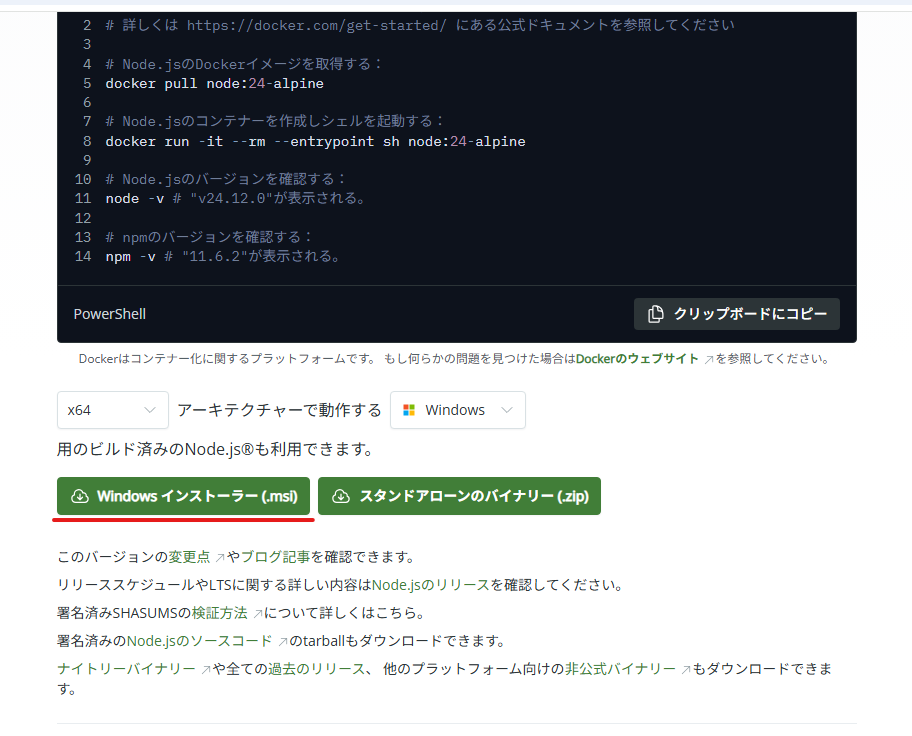
Download the Windows installer
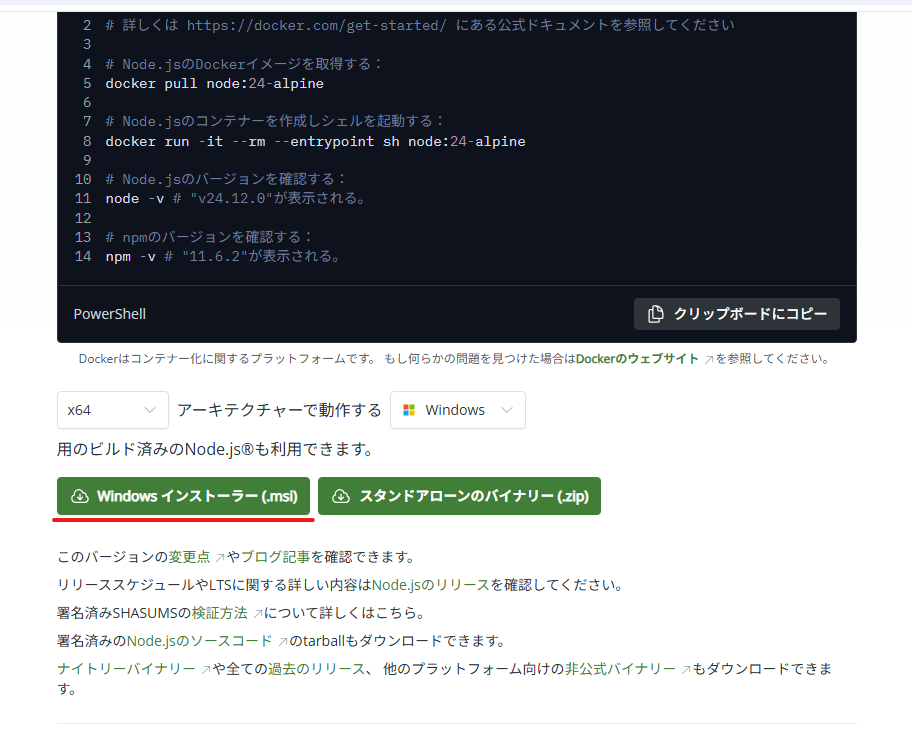
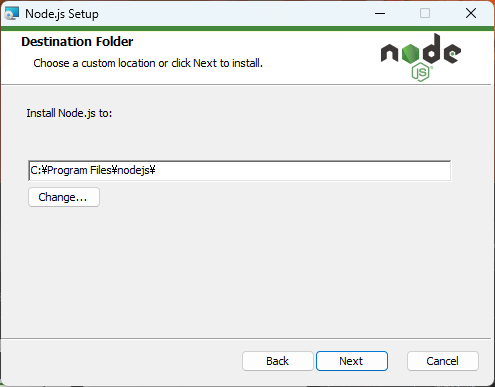
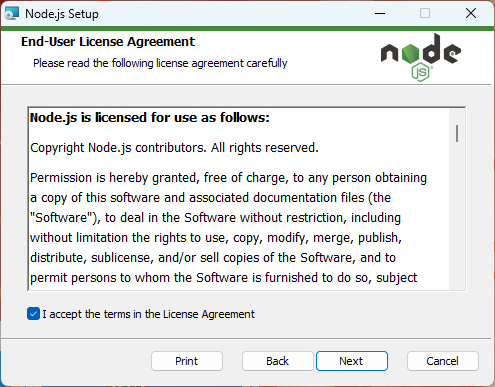
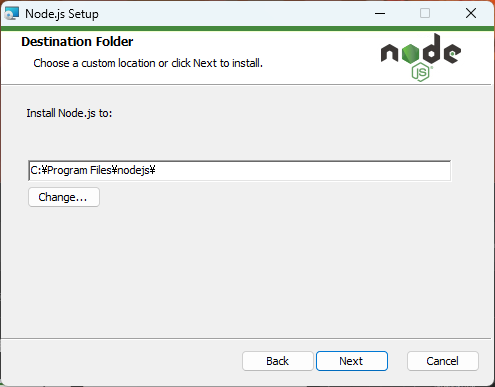
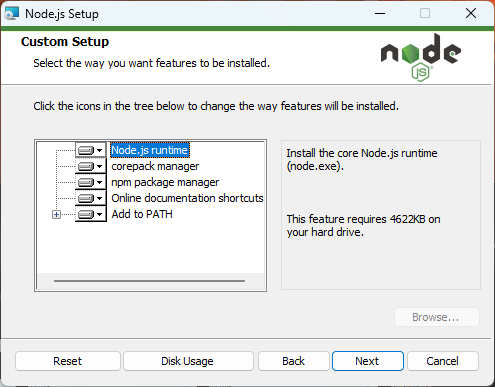
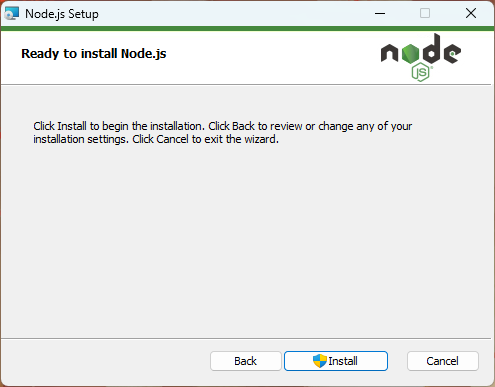
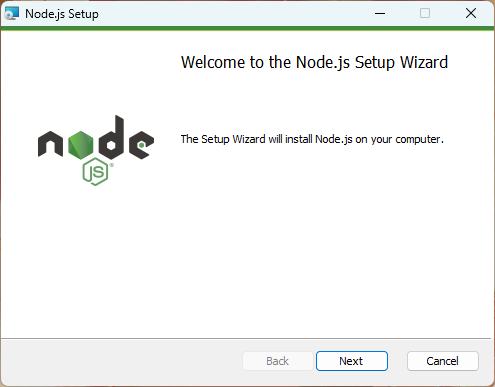
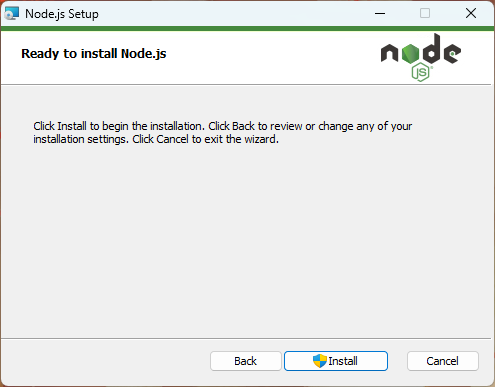
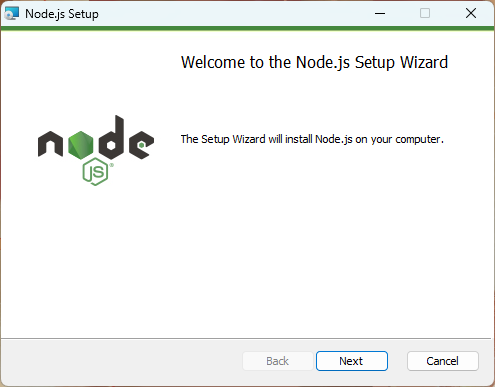
Follow the installation wizard. If you don’t have any specific preferences, just clicking ‘Next’ through all the steps is fine.
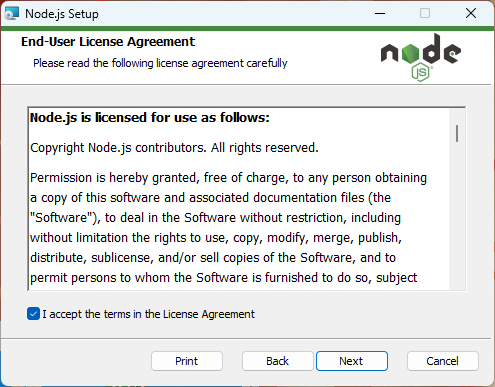
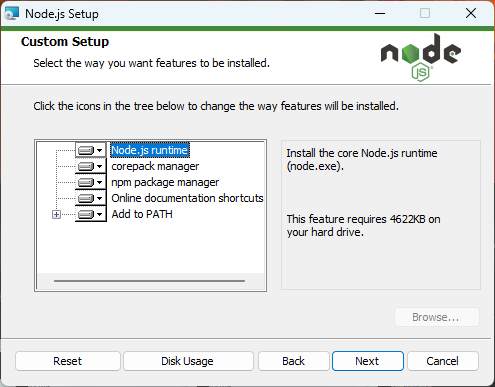
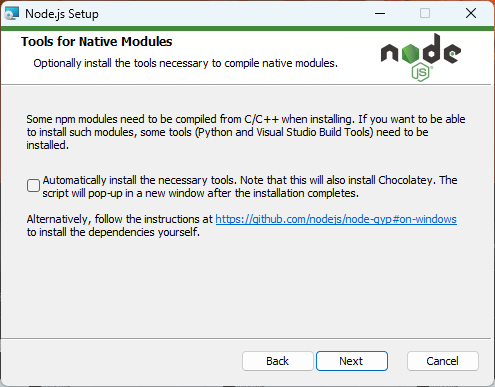
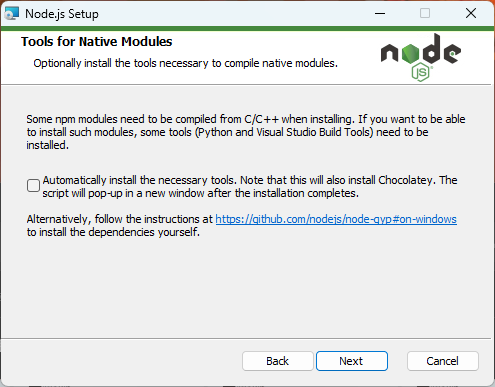
You can basically keep clicking ‘Next’ here as well, but if you plan to use various Node.js modules in the future, it’s a good idea to check this option.
However, it’s not necessary for this setup.
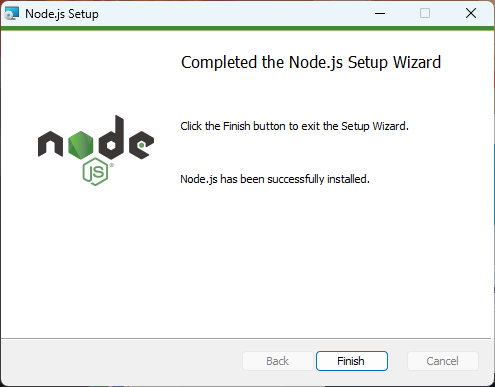
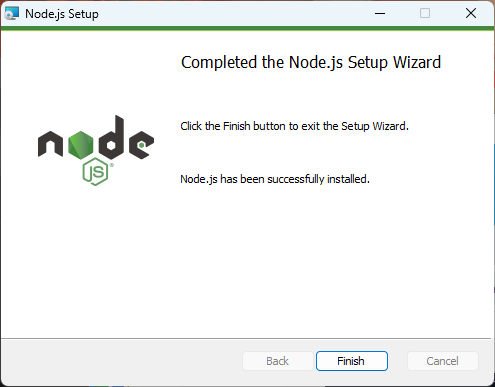
That’s it! Node.js is now set up and ready to go.

Installing Cursor

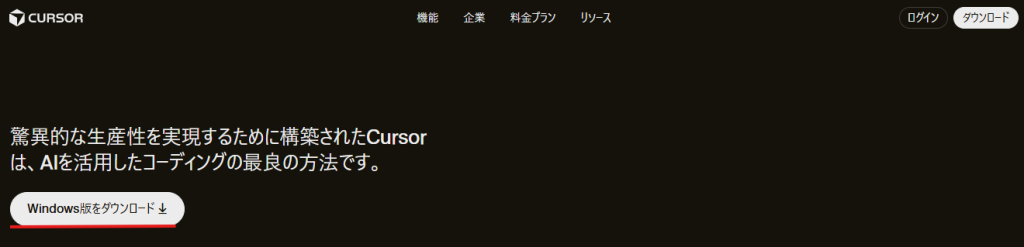
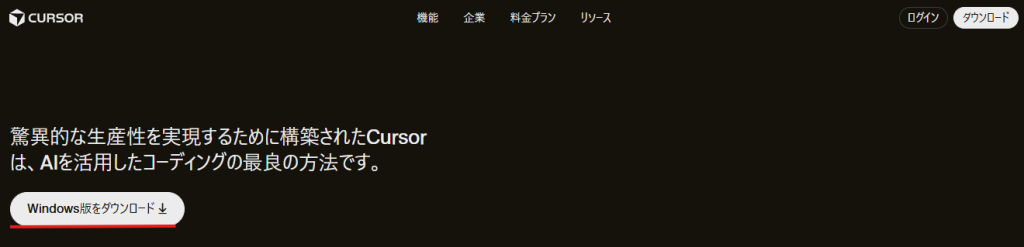
Download the installer from the official website.
The latest version at the time of writing is 2.2.44.
If you don’t have any specific preferences, you can proceed with the default settings during installation.
After installation, you’ll be prompted to log in, so it’s a good idea to create an account on the official website beforehand for a smoother setup.
Adding Extensions to Cursor

Add the following extensions to Cursor

  • Japanese Language Pack for VS Code
    ・Japanese localization
  • npm
    ・Support for npm
  • Npm Intellisense
    ・Auto-completion for npm modules in import statements
  • Vue (Official)
    ・Support for Vue
  • Vite
    ・Support for Vue development server

Creating a Vue 3 Project

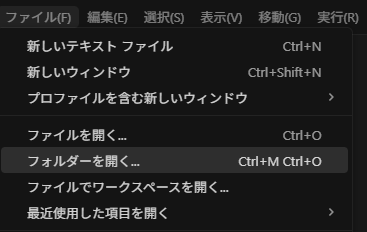
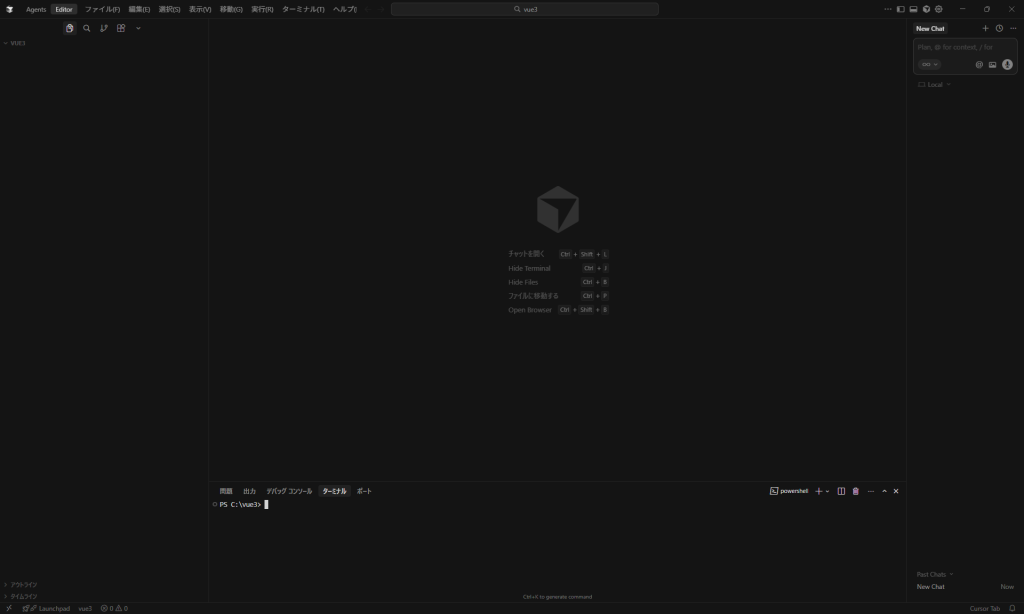
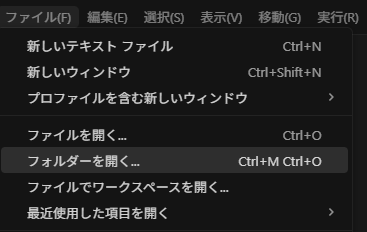
Go to File > Open Folder and open the location where you want to create your project.
Open the terminal with [Ctrl + @]
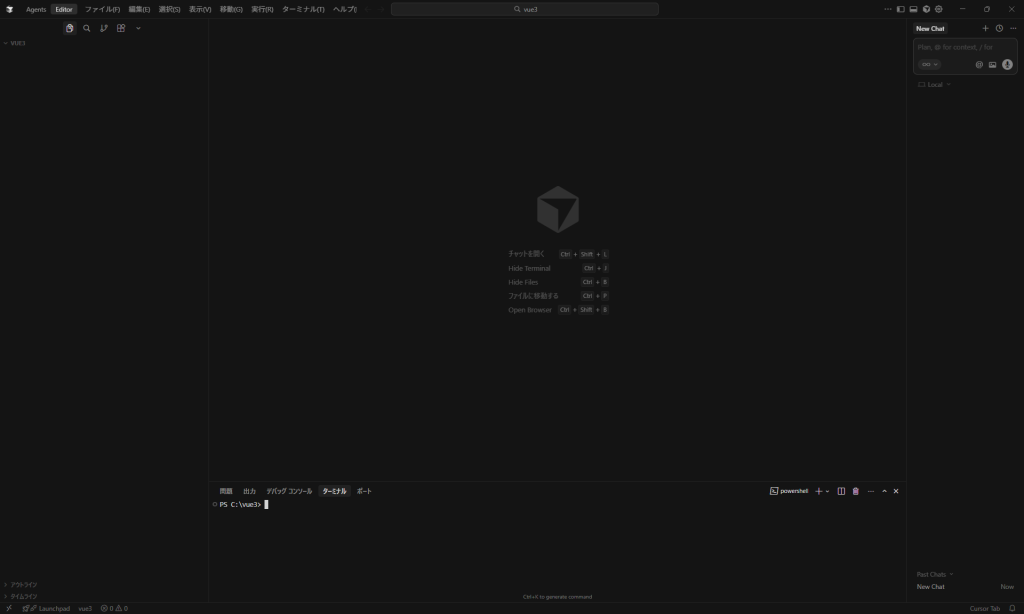
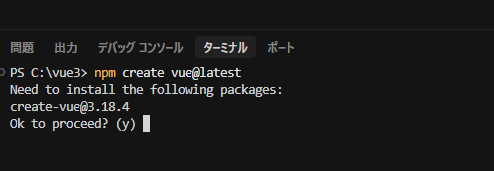
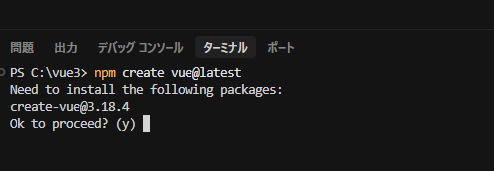
Run the following command in the terminal to create the project

npm create vue@latest

Type ‘y’

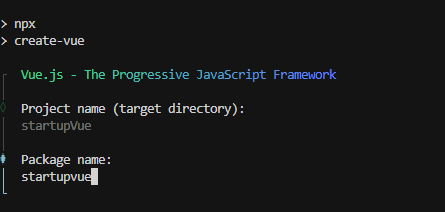
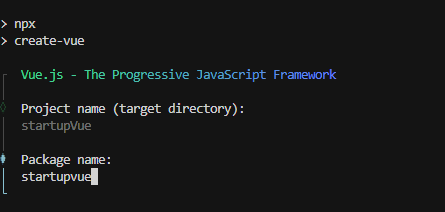
Enter your preferred project name and package name.
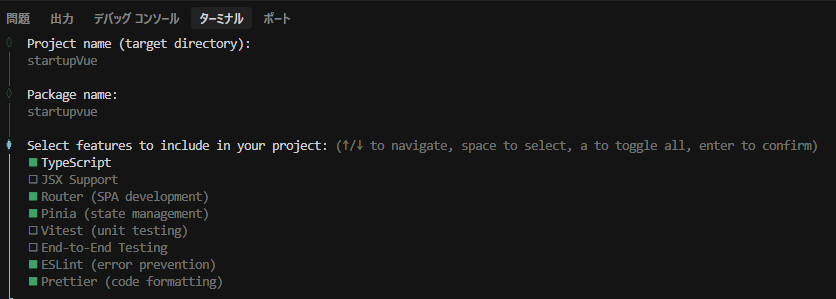
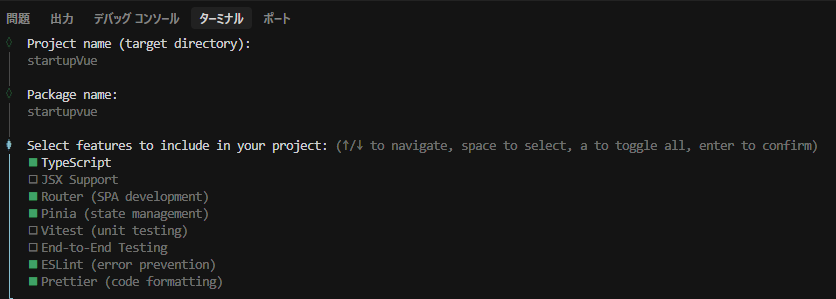
Select the packages you want to add.
Give it a try

  • TypeScript
    ・Must be added
  • JSX Support
    ・Enables writing Vue in JSX/TSX syntax. Add this if you prefer a React-like style.
    ・Turned off for this setup.
  • Router
    ・Essential for page navigation
    ・Must be added
  • Pinia
    ・State management library
    ・Add if you need to manage login info, user data, or shared state
  • Vitest
    Add if you want to automate unit testing
  • End-to-End Testing
    ・Add if you want to automate tests that include browser interactions
  • ESLint
    ・Linting tool to check code style
    ・Must be added
  • Prettier
    ・Automatically formats your code
    ・Must be added

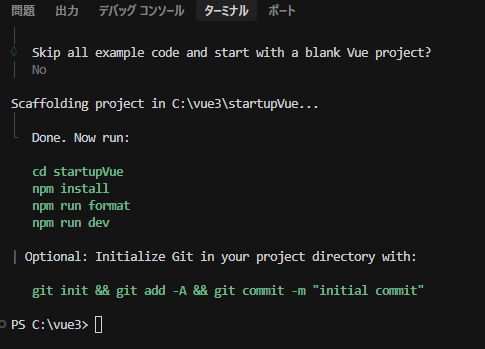
You’ll be asked whether to enable experimental features. Since we won’t be using them this time, just press Enter to keep the default.

You’ll be asked whether to create the project without sample code.
For this setup, select ‘No’ to include the sample code.

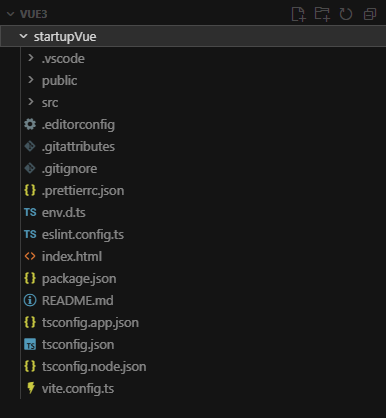
The project creation will begin, and once it’s complete, a project folder will be generated.
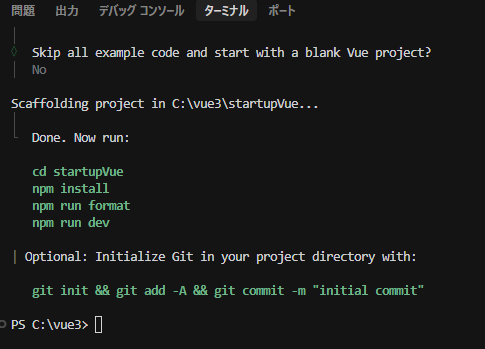
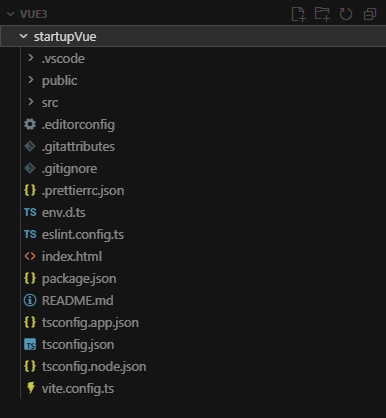
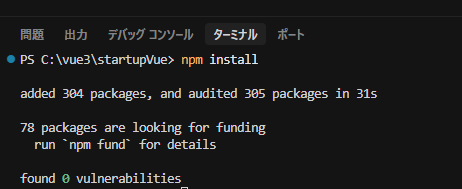
Reopen the created project folder in Cursor and run the following command

PS C:\vue3\startupVue> npm install
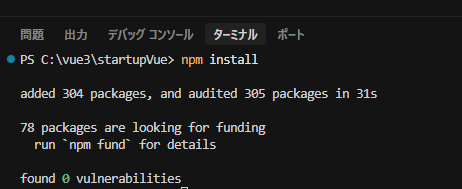
Once the dependencies are installed, the project setup is complete.

Starting the Vue app

Run the following command to start the development server

npm run dev

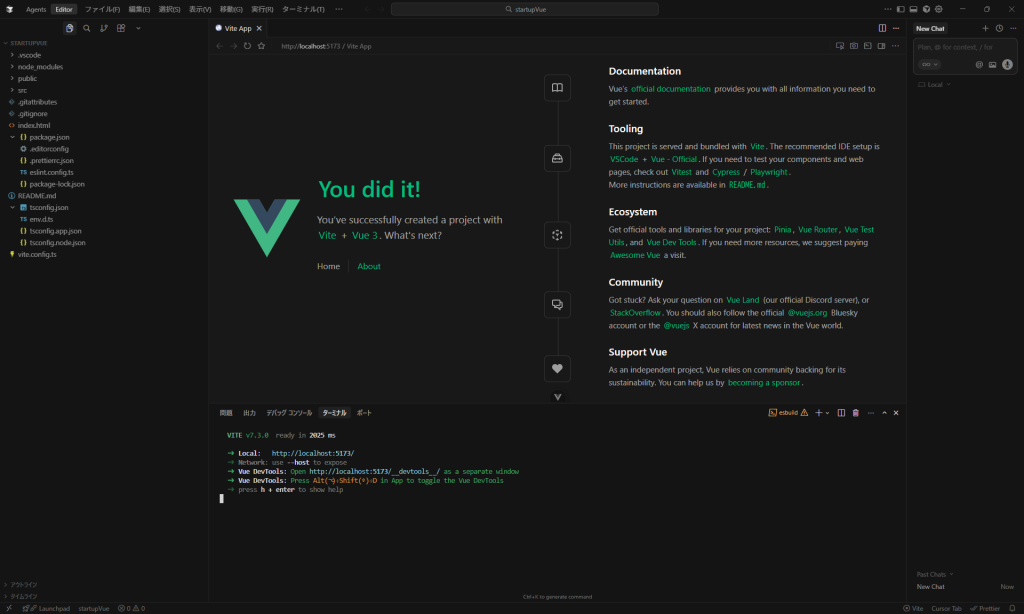
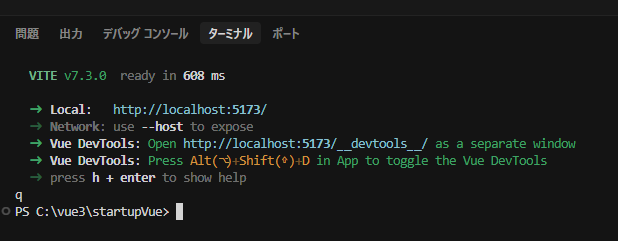
If the launch is successful, the following screen will be displayed
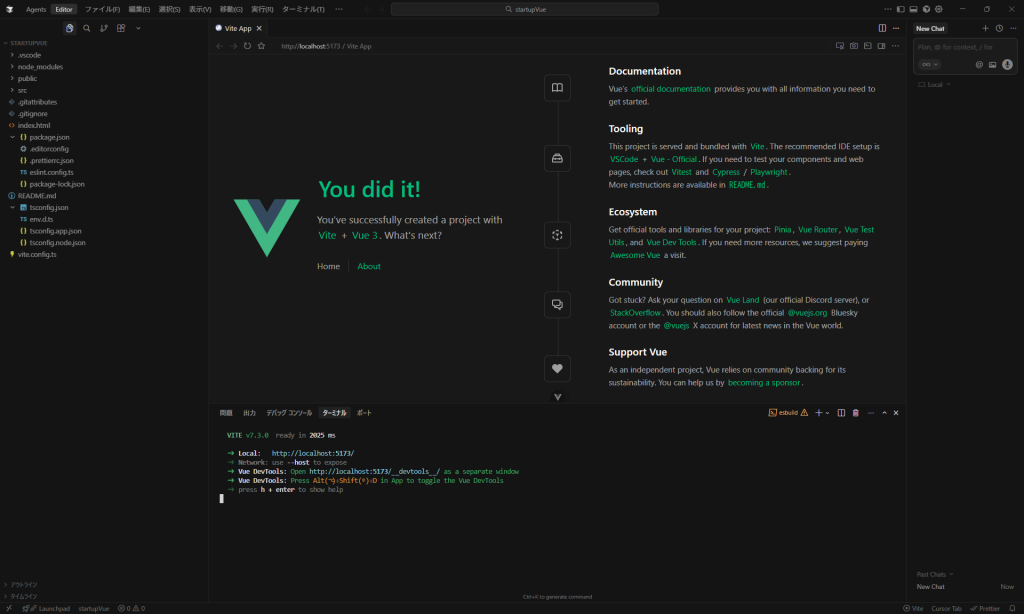
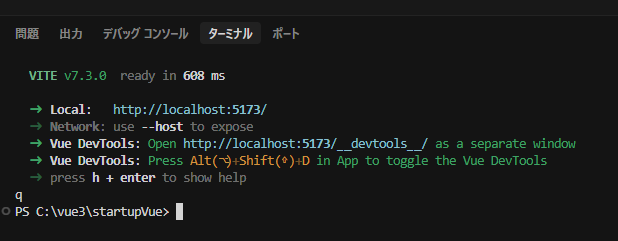
You can stop the server by typing [q] in the console.
That’s it! We’ve set up a Vue 3 development environment using Cursor.
If this sparked your interest, try setting it up on your own PC too!
Windows環境のCursorでVue3開発環境を作ってみる

技術者ブログとして日ごろ取り組んでいる学習内容をご紹介します。
今回はAI機能を搭載したコードエディタCursorでVue3の開発環境を作ってみたので紹介します。

必要なもの

・Node.js
・Cursor
・Vue3
・Vue Router

Node.jsのインストール

公式サイトよりインストーラを取得
記事作成時最新は「24.12.0(LTS)」
Windowsインストーラをダウンロード

インストールウィザードに沿ってインストール、特にこだわりがなければすべてNextでOK

以下も基本的にNextで大丈夫ですが、今後Node.jsのいろいろなモジュールを使用した場合は
チェックを入れておくといいです。
今回の環境では不要です。

以上でNode.jsが準備できました。

Cursorのインストール

公式サイトよりインストーラーを取得します。
記事作成時最新は「2.2.44」
とくにこだわりがなければ、インストーラーデフォルト設定のままインストールでOK
インストール後、ログインが求められるのであらかじめ公式サイトのログインからアカウント登録しておくとスムーズに進みます

Cursorに拡張機能の追加

Cursorに以下の拡張機能を追加します

  • Japanese Language Pack for VS Code
    • 日本語化
  • npm
    • npmのサポート
  • Npm Intellisense
    • importステートメント内のnpmモジュール自動補完
  • Vue (Official)
    • Vueのサポート
  • Vite
    • Vue開発サーバーのサポート

Vue3プロジェクトを作成

ファイル > フォルダーを開くでプロジェクトを作成したい場所を開く

[Ctrl + @]でコンソールを開く

コンソールで以下のコマンドを実行しプロジェクトを作成

npm create vue@latest

yを入力

お好きなプロジェクト名、パッケージ名を入力

追加したいパッケージを選択します

実行してみる

  • TypeScript
    • 必ず追加
  • JSX Support
    • JSX/TSX で Vue を書くための機能、React風に書きたい場合は追加
    • 今回はOFF
  • Router
    • 画面遷移に必須
    • 必ず追加
  • Pinia
    • 状態管理ライブラリ
    • ログイン情報・ユーザー情報・共通データなどを扱う場合は追加
  • Vitest
    • 単体テスト自動化するなら追加
  • End-to-End Testing
    • ブラウザ操作を含むテストを自動化するなら追加
  • ESLint
    • コードの書き方チェック
    • 必ず追加
  • Prettier
    • コード自動整形
    • 必ず追加

実験的機能を使うか聞かれる今回は使用しないため初期のままEnter

サンプルコードを省略して作成するか確認されるので今回は「No」を選択し
サンプルコードを追加

プロジェクトの作成が始まり完了するとプロジェクトフォルダが作成される

作成したプロジェクトフォルダをcursorを開きなおし以下のコマンドを実行

PS C:\vue3\startupVue> npm install

依存関係のインストールが完了すればプロジェクトの準備完了

Vueの起動

以下のコマンドを実行すると開発サーバーを実行することができます

npm run dev

起動に成功すると以下の画面が表示される

コンソールに[q]を入力することでサーバーを停止できます

以上、CursorでVue3の開発環境を構築してみました。
興味が持てましたら自分のPCにも構築してみてください。

2026 New Year’s Greetings & Toyokuni Shrine

Happy New Year.
I am Hideaki Takahashi of Dandelions Co., Ltd.
We sincerely thank all of you for your support throughout the past year.
We look forward to your continued support this year.


Toyokuni Shrine 1

Last October, we relocated our office to a new building.

Looking back on last year, a major milestone for us was the office relocation to our new headquarters in October.We were able to complete the relocation successfully thanks to the cooperation of our valued business partners and, above all, each and every member of our team. We sincerely thank you all.

Dandelions,Inc.
Dandelions New Headquarters

Immediately after the move, the change in environment meant many unfamiliar things, and it was a continuous process of trial and error. However, we have gradually become accustomed to working in the new office building.
To be honest, though, I don’t feel like it’s “finished just because it’s ready.” Rather, I feel like this is where the real plan, set in our new headquarters, finally begins.


With our new headquarters as the stage, we will further cultivate an environment conducive to taking on challenges.

We aspire to be a team where ideas flow more freely and challenges are embraced with greater enthusiasm, all to create better services. By leveraging our new base, we will enhance the quality of our daily work, increase learning opportunities, and further cultivate an environment that encourages taking on challenges.

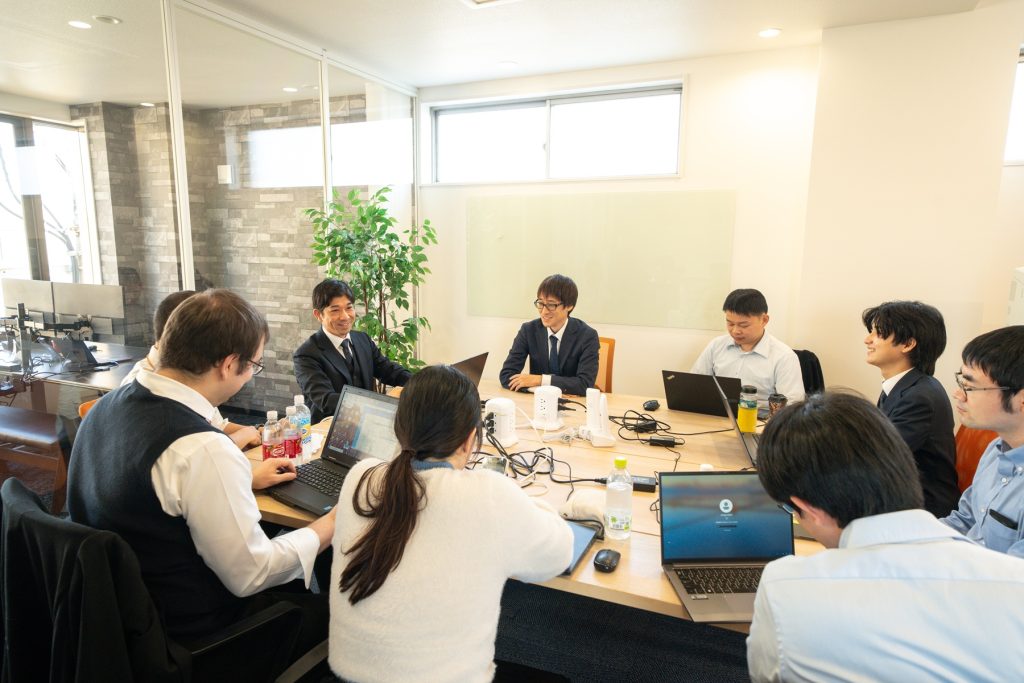
Company atmosphere

Next April, we will welcome new members.

And next April, new employees are scheduled to join us.
I myself am very much looking forward to welcoming new colleagues. With fresh perspectives and energy joining the team, this should be a year where the company itself takes another step forward in its growth. As the welcoming side, I want to prepare an environment where they can feel secure in taking on challenges and fully commit to their development.

Toward fields where people can thrive across generations

We want to create a positive atmosphere and provide opportunities for challenge so that everyone joining our company feels, “This is a company that will continue to step up and grow.”At the same time, we will place greater emphasis than ever before on creating fields where individuals can thrive across generations, regardless of age or years of experience.
The drive of our young talent, the momentum of our mid-career professionals, and the depth of our veterans—all contribute to the company’s strength. We are committed to building such a team.

Toyokuni Shrine 2

We look forward to your continued support this year.

This year, Dandelions will continue to build upon our valuable work centered around “technology” and “people.”
We sincerely appreciate your continued guidance and support.

May this year be one of health and abundance for you all.
We look forward to your continued support this year.

Dandelions Co., Ltd.
President and CEO: Hideaki Takahashi

2026年 年始のご挨拶 & 豊国神社

新年あけましておめでとうございます。
株式会社ダンデライオンズの髙橋英晃です。
旧年中は、多くの皆さまに支えていただき、心より御礼申し上げます。本年もどうぞよろしくお願いいたします。


豊国神社1

昨年10月、新社屋へオフィス移転しました

さて、昨年を振り返ると、私たちにとって大きな節目となったのが 10月の新社屋へのオフィス移転 でした。無事に移転を終えられたのは、日頃から関わってくださっているお取引先の皆さま、そして何より社内メンバー一人ひとりの協力のおかげです。本当にありがとうございました。

ダンデライオンズ新社屋

移転直後は、環境が変わることで慣れないことも多く、試行錯誤の連続でしたが、少しずつ新社屋での働き方にも馴染んできました。
ただ、正直なところ「整ったから完成」ではなく、ここからようやく、新社屋を舞台にした本当の計画がスタートする、そんな感覚でいます。


新社屋を舞台に、挑戦できる土壌をさらに厚く

私たちは、より良いサービスづくりのために、もっと活発にアイデアが生まれ、もっと気持ちよく挑戦できるチームでありたいと思っています。新しい拠点を活かしながら、日々の仕事の質を高め、学びの機会を増やし、チャレンジできる土壌をさらに厚くしていきます。

社内の雰囲気

来年4月、新しい仲間を迎えます

そして、来年4月には新入社員が入社予定です。
新しい仲間が増えることを、私自身とても楽しみにしています。新しい視点やエネルギーがチームに加わることで、会社としても一段階成長できる年になるはずです。迎える側として、彼らが安心して挑戦できる環境を整え、しっかりと育成に向き合っていきたいと思います。

世代を超えて活躍できるフィールドへ

入社してくる皆さんには、「ここは、これから益々ステップアップしていく会社だ」と感じてもらえるような、前向きな空気と挑戦の機会を用意したいと考えています。そして同時に、年齢や経験年数に関係なく、世代を超えて活躍できるフィールドをつくることにも、これまで以上に力を入れていきます。若手の勢いも、中堅の推進力も、ベテランの厚みも、すべてが会社の力になる。そんなチームを本気で育てていきます。

豊国神社2

本年もどうぞよろしくお願いいたします

本年もダンデライオンズは、「技術」と「人」を軸に、より価値のある仕事を積み重ねてまいります。
変わらぬご指導ご鞭撻のほど、何卒よろしくお願い申し上げます。

皆さまにとって、この一年が健康で実り多い年となりますように。
本年もどうぞよろしくお願いいたします。

株式会社ダンデライオンズ
代表取締役 髙橋 英晃

Study Session: Low-Code Development Experience Using OutSystems Part 3

I’m oz, and I’ll be covering this study session article. This time, we held our study session “Low-Code Development Experience with OutSystems Part 3,” so let me share how it went!

Check out the previous study session here!

Continuing from last time, this study session also aims to “deepen understanding of low-code development and OutSystems by experiencing development with OutSystems.” With many members joining for the first time this session, it became an even more lively study session.

The study session will proceed as follows:

① Development Experience with OutSystems
② Summary and Q&A

Development Experience with OutSystems

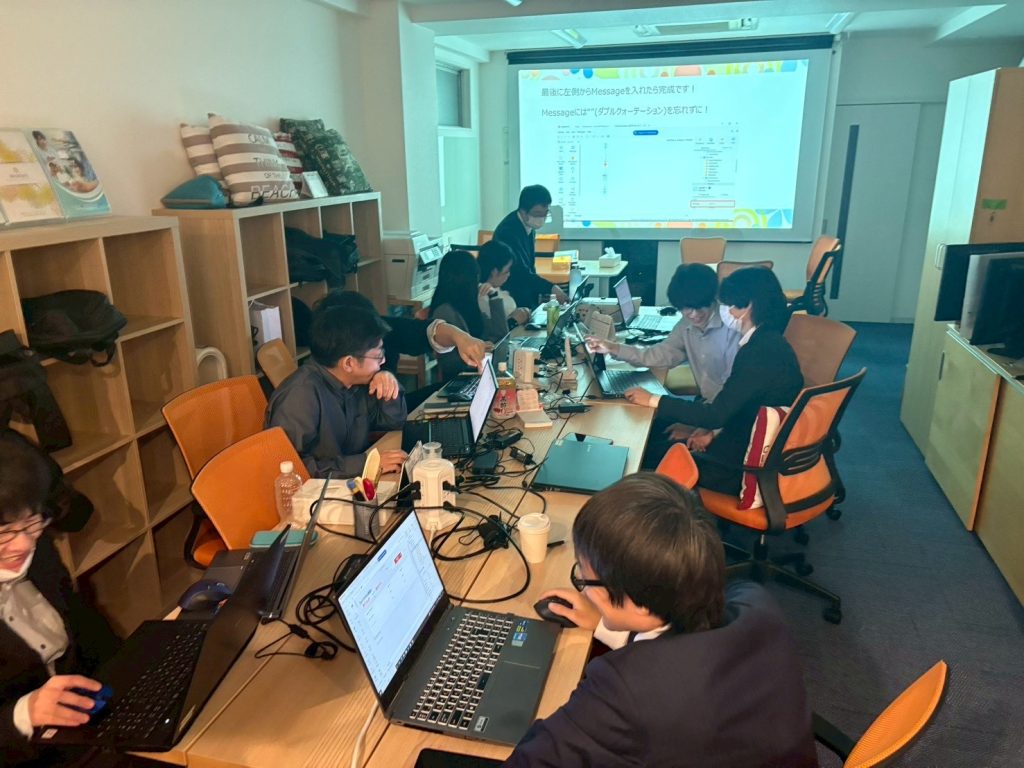
While delivering a PowerPoint presentation, we simultaneously progressed with actual development using the OutSystems environment. The main activities conducted this time were as follows:
Data Import and Export
・Let’s create an Entity (table)
・Let’s create master screens (list/detail) from an Entity: Scaffolding
・Let’s read and write Entity data from the created screens

Let’s create an entity (table)

First, add a table to store the data handled by the app.
Next, give the table a name that reflects its purpose so you can understand what kind of information it manages.
After creating the table, proceed to add columns. Assign each column a name corresponding to the actual item you wish to store, and simultaneously determine the data type based on the type of data to be stored, such as string, number, or date.

Let’s create master screens (list and detail) from an Entity: Scaffolding

Typically, when creating a master screen, you need to design and implement the list screen and detail screen from scratch. However, OutSystems offers a convenient mechanism that automatically generates a master screen to a certain extent simply by preparing a table.
This automatic generation feature is called Scaffolding. Using Scaffolding creates basic master screens such as list displays, registration, updates, and deletions as templates, greatly reducing development effort.

Let’s try reading and writing Entity data from the screen we created.

The master screen created with Scaffolding allows basic operations as-is, but adding further functionality makes it more practical. This time, we will enable direct data entry from the web screen, bulk data import using Excel files, and conversely, the ability to export data as Excel files.
From the web interface, you can register or update data one record at a time by setting values in the input fields on the screen and saving them. Additionally, by adding the Excel import feature, you can register or update multiple records at once simply by uploading an Excel file.
Furthermore, enabling the output of registered data as Excel files simplifies data verification and integration with other systems. By combining screen input, Excel import, and Excel export, the master screen is designed to be user-friendly for daily operations.

Summary

This study session covered even more practical content than the last one, and I believe it successfully conveyed the benefits of low-code development and OutSystems.
As development progressed, when questions or difficulties arose, nearby members actively exchanged ideas, discussing questions and issues together.
As a result, I feel that my understanding has deepened even further.

We plan to continue hosting study sessions focused on OutSystems development!
Stay tuned for our next article.

社内勉強会:Outsystemsを用いたローコード開発体験 Part3

今回の勉強会記事を担当します、ozです。 今回は社内勉強会「OutSystemsを用いたローコード開発体験 Part3」が開催されましたので、その様子をご紹介します!

前回の勉強会の様子はこちら

前回に引き続き、今回の勉強会も「OutSystemsでの開発を体験することで、ローコード開発やOutSystemsへの理解をより深めていくこと」を目的としています。 今回からの参加となるメンバーも多数おり、さらに活気ある勉強会となりました。

勉強会の流れは以下のとおりです。

① OutSystemsでの開発体験
② まとめ・質疑応答

OutSystemsでの開発体験

パワーポイントでの発表を行いながら、 一緒にOutSystemsの環境を用いて実際に開発を進めました。 今回実施した内容は、主に以下のとおりです。
データのインポート・エクスポート
・Entity(テーブル)を作ってみよう
・Entityからマスタ画面(一覧・詳細)を作ってみよう:Scaffolding
・作った画面からEntityデータを読み書きしてみよう

Entity(テーブル)を作ってみよう

まずは、アプリで扱うデータを保存するためのテーブルを追加します。
次に、そのテーブルがどのような情報を管理するものか分かるよう、用途に合わせた名前を付けます。
テーブルを作成したら、続いて列を追加していきます。 各列には、実際に保存したい項目に対応する名前を設定し、あわせて文字列・数値・日付など、格納するデータの種類に応じたデータ型を決めます。

Entityからマスタ画面(一覧・詳細)を作ってみよう:Scaffolding

通常、マスタ画面を作成する場合は、一覧画面や詳細画面を1から設計・実装する必要があります。 しかし、OutSystemsではテーブルを用意するだけで、マスタ画面を自動である程度作成してくれる便利な仕組みがあります。
この自動生成機能は Scaffolding(スキャフォールディング) と呼ばれています。 Scaffoldingを使うことで、一覧表示や登録・更新・削除といった基本的なマスタ画面がテンプレートとして作成されるため、開発の手間を大きく減らすことができます。

作った画面からEntityデータを読み書きしてみよう

Scaffoldingで作成したマスタ画面は、そのままでも基本的な操作が可能ですが、さらに機能を追加することで、より実用的になります。 今回は、Web画面から直接データを入力したり、Excelファイルを使ってデータを一括で取り込んだり、逆にExcelとして出力できるようにしていきます。
Web画面からの入力では、画面上の入力欄に値を設定して保存することで、1件ずつデータを登録・更新できます。 また、Excelの取り込み機能を追加すると、Excelファイルをアップロードするだけで、複数件のデータをまとめて登録・更新できるようになります。
さらに、登録されているデータをExcelファイルとして出力できるようにすることで、データの確認や他システムとの連携も簡単になります。 このように、画面入力・Excel取り込み・Excel出力を組み合わせることで、マスタ画面は日常業務で使いやすい形に仕上がっていきます。

まとめ

今回の勉強会では、前回よりもさらに実践的な内容を取り上げ、ローコード開発やOutSystemsの良さを伝えられた回になったと思います。
開発を進める中で分からないことや、うまくいかない点が出てきた際には、近くのメンバー同士で相談しながら、質問や問題点について活発な意見交換が行われていました。
その結果、理解もより一層深まったのではないかと感じています。

今後もOutSystemsの開発をテーマとした勉強会を開催予定です!
次回の記事もお楽しみに。

Engineer Blog – Automatic Column Generation in OutSystems Data Grid

In this engineer blog, I’ll introduce what I’ve been learning recently. This time, I’ll explain automatic column generation in OutSystems Data Grid.

  • OutSystems Data Grid is a spreadsheet-like grid that can be displayed and interacted with within an OutSystems application.
  • This article assumes prior knowledge of OutSystems Data Grid.

Problem Statement

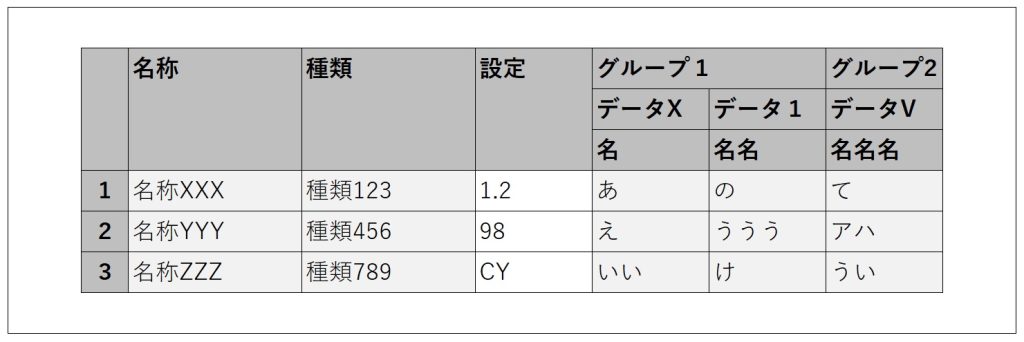
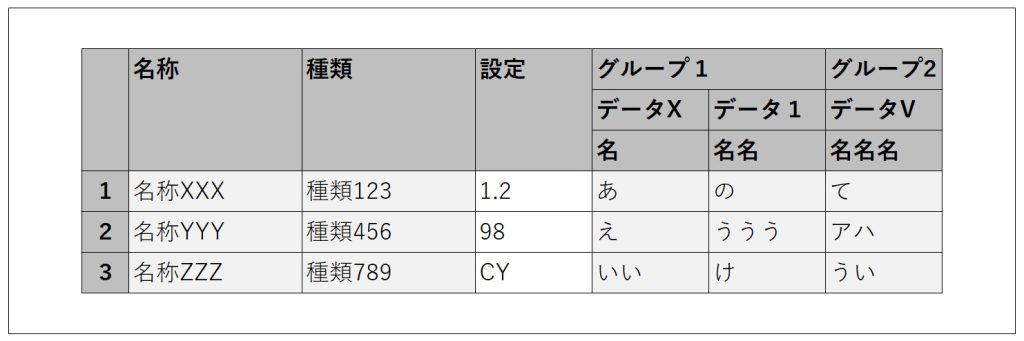
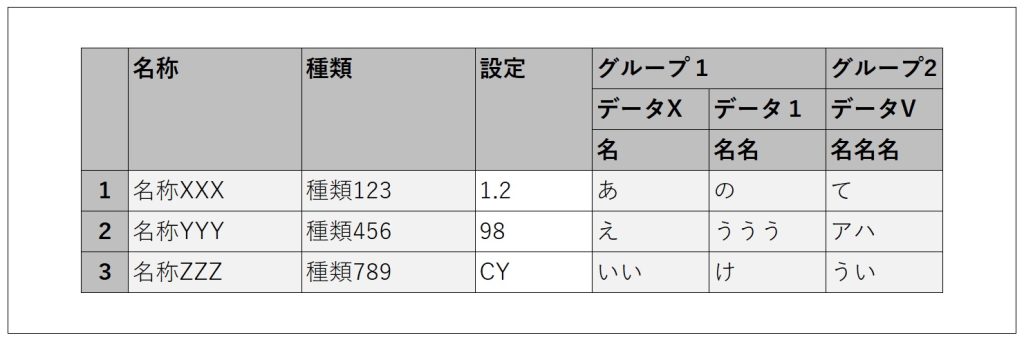
For example, let’s say we have a grid like the one below.

The usual way to create it would be as follows.

  1. Set the data to be displayed into a Structure that matches the grid layout, convert it into a list, transform it into JSON using ArrangeData, and set the resulting JSON as the grid’s data.
  2. Place a column widget on the grid for each column to be displayed, and configure each header, column width, display conditions, and so on.

For a grid with six columns like the one above, it’s not too difficult. However, if the number of columns to display is variable, creating it becomes more challenging.

You need to determine the maximum number of columns to display, then prepare the Structure from step 1 and the column widgets from step 2 to match that maximum number. Additionally, you must control the visibility of each column based on how many you actually want to display. As a result, all the columns up to the maximum exist, but only the desired number of columns are visible.

Especially for step 2, if the grid’s configuration is even slightly complex—such as having merged headers with dynamic labels—the amount of work required increases significantly.

If the maximum number is around 100, it might take some time, but it’s still manageable. However, I once faced a case where the maximum number reached nearly 1,500. At that time, I looked into whether it was possible to generate the grid columns using JavaScript.

As a result of the automatic generation, step 1 of the usual method still needs to be done as is, but step 2 becomes much simpler.

Prerequisites

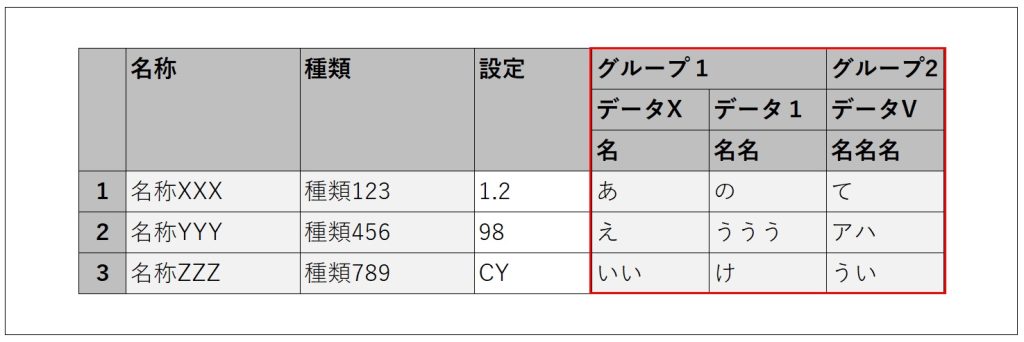
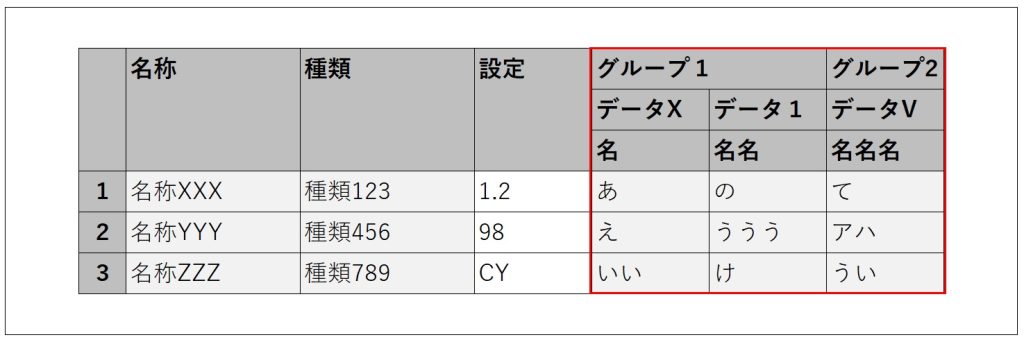
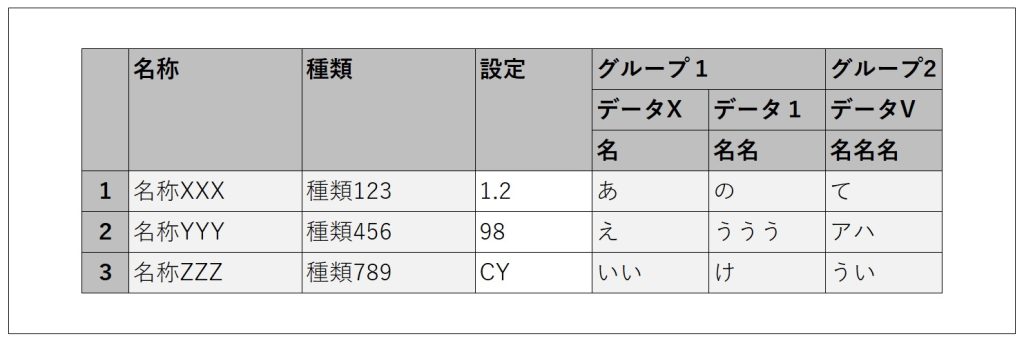
In a grid like the one below, the columns outlined in red are the target for automatic generation. (The left three columns are placed as usual. The auto-generated columns are on the right.)

The cells in the auto-generated columns will be set to read-only. The column order in the grid will be fixed and cannot be changed.

The data to be displayed in the grid has already been retrieved and is set to the grid as described in step ① above.

The header labels (such as ‘グループ1’, ‘データX’, ‘名名名’, etc.) are dynamic and have already been retrieved in a format that can be passed into JavaScript. (In the sample JavaScript code, these input parts will be shown in bold.)

In the implementation JavaScript, we use a variable called dataGrid. You can obtain dataGrid as shown below. (Let gridId be the ID of the configured grid.)

var dataGrid = OutSystems.GridAPI.GridManager.GetGridById('gridId').provider;

Preliminary Research

From the link below, I found that it’s possible to push columns into dataGrid.columns.

https://www.outsystems.com/forums/discussion/80001/outsystems-data-grid-is-is-possible-to-add-columns-dynamically-on-datagrid/

Upon further investigation of dataGrid, I found that in addition to columns, there is also columnGroups. I thought that by pushing to columnGroups, it might be possible to create grouped, merged header columns.

Implementation Flow

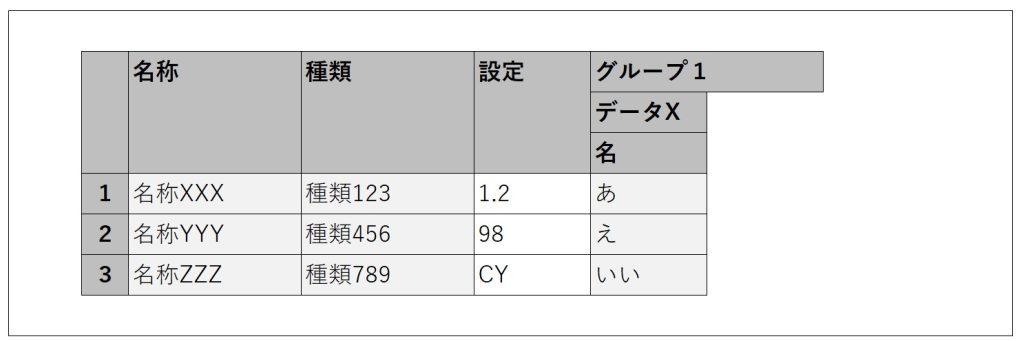
In the ‘On After Fetch’ action after retrieving the data, implement it as follows.

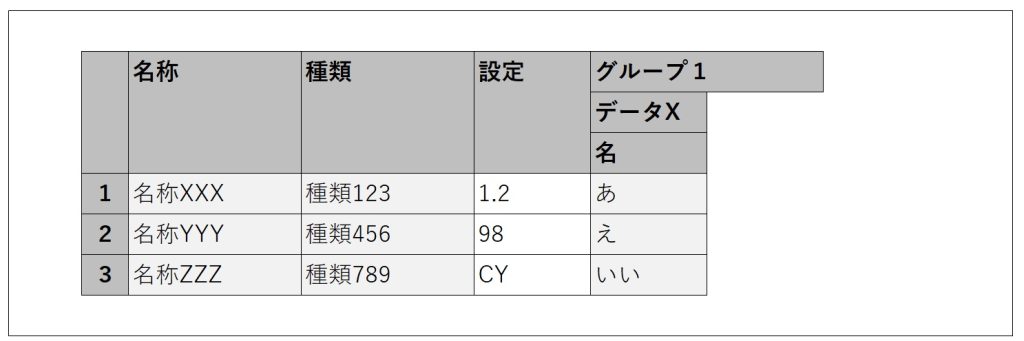
The first column of ‘グループ1’

// Create the element to push
var newColGroup = new wijmo.grid.ColumnGroup (
	{header: 'グループ1', align: 'left', columns: [
		{header: 'データX', align: 'left', columns: [
			{header: '', binding: 'Data1', width: 100, align: 'left', isReadOnly: true}
		]}
	]}
)
// Push newColGroup into columnGroups
dataGrid.columnGroups.push(newColGroup);

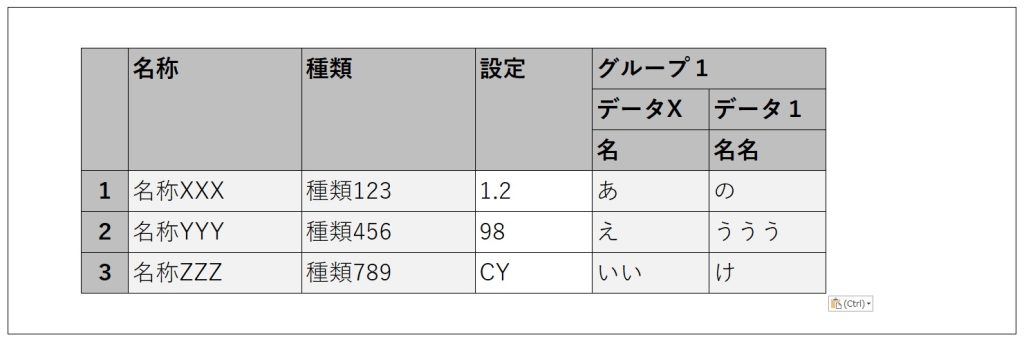
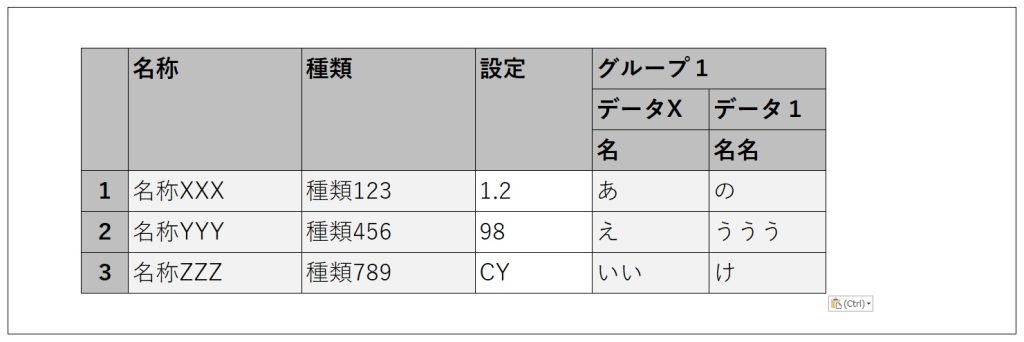
The second column of ‘グループ1’

// Create the element to push
var newColGroup = new wijmo.grid.ColumnGroup (
	{header: 'データ1', align: 'left', columns: [
		{header: '名名', binding: 'Data2', width: 100, align: 'left', isReadOnly: true}
	]}
)

// Push newColGroup into the columns of the target columnGroup
// columnGroups[3] refers to the created "Group 1", which is at index 3 in columnGroups
dataGrid.columnGroups[3].columns.push(newColGroup);

the ‘グループ2’ column

// Create the element to push
var newColGroup = new wijmo.grid.ColumnGroup (
	{header: 'グループ2', align: 'left', columns: [
		{header: 'データV', align: 'left', columns: [
			{header: '名名名', binding: 'Data3', width: 100, align: 'left', isReadOnly: true}
		]}
	]}
)

// Push newColGroup to columnGroups
dataGrid.columnGroups.push(newColGroup);

As shown above, grouped columns with merged headers are created one by one.
By adjusting the structure of newColGroup and the target of the push accordingly, it should be possible to create column groups with different structures.

additional support

When automatically generating columns, the following two points must be taken into consideration.

  • The variable dataGrid represents the grid obtained as a JavaScript object. At the time the ‘On After Fetch’ action is executed after data retrieval, the grid must already exist. One way to handle this is to set the data retrieval action’s timing to ‘Only on Demand’ and execute it in the ‘OnReady’ action.
  • If the grid contains columns with editable cells, a post-edit check is performed on the entire row to determine whether any cells were edited. However, if this check tries to access the automatically generated columns, it will result in an error. (In the grid used as an example in this article, the ‘Settings’ column is editable.)

To handle this, adjust the edit check in the grid’s ‘OnInitialize’ action using JavaScript as shown below.

// Regular cell edit check
var originalCheck = OutSystems.GridAPI.GridManager.GetGridById('gridId').features.dirtyMark._isDirtyCell;

// Adjust the check
// Immediately treat cells in auto-generated columns as unedited
// Since columns with index 3 and above are auto-generated, control with "columnIndex > 2"
var newCheck = function (rowIndex, columnIndex) {
	if (columnIndex > 2) {
		return false;
	} else {
		var checkResult = originalCheck.call(this, rowIndex, columnIndex);
		return checkResult;
	}
}

// Apply the adjusted check to the grid
OutSystems.GridAPI.GridManager.GetGridById('gridId').features.dirtyMark._isDirtyCell = newCheck;

Stay tuned for the next developer blog.

技術者ブログ – OutSystems Data Gridにおける列自動生成

技術者ブログとして日ごろ取り組んでいる学習内容をご紹介します。今回は、OutSystems Data Gridにおける列自動生成について説明します。

  • OutSystems Data Gridは、OutSystemsのプログラムの中で表示・操作できる、Excelのようなグリッドになります。
  • 本記事は、OutSystems Data Gridについての知識を前提とします。

問題設定

例えば、以下のようなグリッドがあるとします。

通常の作成方法は、以下になると思います。

  1. 表示するデータを、グリッドの構造に合わせたStructureに設定して、リスト化して、ArrangeDataでJSONの変換して、結果のJSONをグリッドのデータとして設定する
  2. グリッドに、表示する列の件数分、列ウィジェットを配置して、それぞれのヘッダ、列幅、表示条件などを設定する

上記のような、列が6件のグリッドの場合、さほど難しくないと思いますが、表示したい列の数が可変の場合、作成が難しくなります。

表示できる最大数を決定して、「1.」のStructureの項目数と、「2.」の列ウィジェットは、それぞれ、その最大数の件数分を用意しなければなりません。そして、各列の表示条件を、表示したい個数に合わせて制御しなければなりません。結果として、最大数の件数分の列が存在しているが、表示した件数分のみが見えています。

特に「2.」については、グリッドの仕様が少しでも複雑(重複ヘッダで、その文言が動的など)でしたら、必要な作業量が著しく増えていきます。

決定した最大数が、例えば100件ぐらいでしたら、多少時間がかかりますが、できなくはない程度になると思いますが、以前、最大数が1500件近くになる場合に直面したことがあります。その際に、グリッドの列をJavaScriptで生成できないか、調べてみました。

自動生成の結果、上記の通常の作成方法の「1.」は、そのまま実施しなければなりませんが、「2.」の方が、簡単になります。

前提

以下のようなグリッドでは、赤枠の列を自動生成の対象します。(左3列は、通常通り配置した列となります。自動生成の列は、右となります。)

自動生成の列のセルを編集不可とします。グリッドの列順を変更不可とします。

グリッドで表示するデータは、取得済みで、上記の①のようにグリッドに設定します。

ヘッダの文言(「グループ1」、「データX」、「名名名」など)を可変として、取得済みで、JavaScriptにインプットできる形で持っています。(実装例のJavaScriptコードの中で、このようなインプット部分を太文字にします。)

実装のJavaScriptで、dataGridという変数を使います。dataGridは、以下のように取得できます。(gridIdは、設定したグリッドのIdとします。)

var dataGrid = OutSystems.GridAPI.GridManager.GetGridById('gridId').provider;

事前調査

以下のリンクで、dataGridのcolumnsに列をpushできることが分かりました。

https://www.outsystems.com/forums/discussion/80001/outsystems-data-grid-is-is-possible-to-add-columns-dynamically-on-datagrid/

dataGridを細かく調査すれば、columnsの他に、columnGroupsもあると分かって、columnGroupsに対するpushで、グループ化された重複ヘッダの列群を作成できるのではないかと考えました。

実装の流れ

データ取得後のOn After Fetchアクションで、以下のように実装していきます。

「グループ1」の最初の列

// pushする要素を作成
var newColGroup = new wijmo.grid.ColumnGroup (
	{header: 'グループ1', align: 'left', columns: [
		{header: 'データX', align: 'left', columns: [
			{header: '', binding: 'Data1', width: 100, align: 'left', isReadOnly: true}
		]}
	]}
)

// newColGroupをcolumnGroupsにpush
dataGrid.columnGroups.push(newColGroup);

「グループ1」の二つ目の列

// pushする要素を作成
var newColGroup = new wijmo.grid.ColumnGroup (
	{header: 'データ1', align: 'left', columns: [
		{header: '名名', binding: 'Data2', width: 100, align: 'left', isReadOnly: true}
	]}
)

// newColGroupを対象のcolumnGroupsのcolumnsにpush
// columnGroups[3]は、作成した「グループ1」はcolumnGroupsの中でインデックス3のため
dataGrid.columnGroups[3].columns.push(newColGroup);

「グループ2」の列

// pushする要素を作成
var newColGroup = new wijmo.grid.ColumnGroup (
	{header: 'グループ2', align: 'left', columns: [
		{header: 'データV', align: 'left', columns: [
			{header: '名名名', binding: 'Data3', width: 100, align: 'left', isReadOnly: true}
		]}
	]}
)

// newColGroupをcolumnGroupsにpush
dataGrid.columnGroups.push(newColGroup);

上記のように、グループ化された、重複ヘッダの列を1つずつ作成していきます。newColGroupの構造、push先のところを適宜調整すれば、異なる構造の列群を作成できると思われます。

追加対応

列自動生成にあたり、以下の2点を留意しなければなりません。

  • 変数dataGridは、グリッドをJavaScriptオブジェクトとして取得したものになります。データ取得後のOn After Fetchアクションが実行される時点で、グリッドが存在しなければなりません。一つの対応方法として、データ取得アクションのタイミングをOnly on Demandに設定して、OnReadyアクションで実行することができます。
  • グリッドに、セルが編集可能な列がある場合、セル編集後、行全体に対して実施されるセル編集有無チェックは、自動生成列のセルをチェックしようとしたら、エラーとなります。(本記事で例として使ったグリッドでは、「設定」列が編集可能とします。)

対応するには、グリッドのOnInitializeアクションのJavaScriptで、以下のように編集有無チェックを調整します。

// 通常のセル編集有無チェック
var originalCheck = OutSystems.GridAPI.GridManager.GetGridById('gridId').features.dirtyMark._isDirtyCell;

// チェックを調整
// 自動生成列のセルを、即座に編集なしとする
// 列インデックス3以上は、自動生成の列のため、「columnIndex > 2」で制御
var newCheck = function (rowIndex, columnIndex) {
	if (columnIndex > 2) {
		return false;
	} else {
		var checkResult = originalCheck.call(this, rowIndex, columnIndex);
		return checkResult;
	}
}

// 調整したチェックをグリッドに設定
OutSystems.GridAPI.GridManager.GetGridById('gridId').features.dirtyMark._isDirtyCell = newCheck;

次回の技術者ブログをお楽しみに。

Employee Introduction

Thank you for viewing.
I’m “Em,” from the Business Development Department, and I’ll be handling this employee introduction article.
I’ll share why I joined Dandelions and my thoughts on joining the company.

What Prompted Me to Join the Company

In my previous role, I began my career as a systems engineer (SE) after joining the company as a new graduate and spent ten years in that position. I gained extensive technical knowledge and experienced significant growth, finding the work deeply rewarding.

However, following a shift in company policy, I embarked on a new career path as a sales professional for the next ten years. Although it was a completely different field, it proved to be invaluable experience. I honed my skills in directly listening to and proposing solutions for customer needs while leveraging the IT knowledge I had cultivated in the field.

My experience in sales was also highly valuable, but I always harbored a strong desire to return to the forefront of technical development as an IT specialist once again.

Around that time, I was introduced to an opportunity by someone I had worked with during my stint as a systems engineer. I became convinced that I could once again pour my passion into the IT work I truly wanted to do, and thus decided to change jobs.

After my employment was confirmed, as I listened to the details, I discovered an even more surprising fact.

Actually, during my time in sales, I had already met you as a client and conducted business with you. The connection formed during my days as a systems engineer, through my relationship with you as a client during my sales period, ultimately led to my joining the company. I feel it was a truly valuable connection.

I possess two distinct perspectives: technical expertise as a systems engineer and the ability to deeply understand customer challenges cultivated through sales experience.
I believe this unique background is my greatest strength, one that sets me apart from others.

Life After Joining

Following my reasons for joining the company, I’d like to share my honest impressions since joining.
It’s been about seven years since I joined. When I decided to change jobs and took the leap into this new environment, what struck me most immediately was how every single employee radiated a passion to “make this company better with our own hands” and was filled with positive energy.

What particularly impressed me was how everyone opened their hearts and listened to my opinions and suggestions, even though I was a new member.
The kindness in your hearts at that time and your attitude of respecting my opinions gave me a great sense of security and joy as I worked in this new environment.
It was precisely because I felt accepted that I was able to quickly become an active member of the company and engage enthusiastically in my work.

Recently, with the addition of many foreign members and young employees from the new generation, the company has become even more vibrant. Currently, regardless of nationality or age, we are able to work together in a truly “harmonious and friendly” atmosphere, respecting one another.
Being able to experience this process of change and growth as a member of the organization is also a source of joy.

Dandelions and Dogs

That’s all for this time.
Stay tuned for the next employee spotlight!

社員紹介

ご覧いただき、ありがとうございます。
今回社員紹介の記事を担当します、業務開発部所属の「えむ」です。
ダンデライオンズに入社したきっかけ・入社した感想についてお話します。

入社したきっかけ

前職では、新卒で入社してから10年間、システムエンジニア(SE)としてキャリアをスタートさせました。技術面で学びが多く成長でき、大きなやりがいを感じていました。

しかし、会社の方針転換に伴い、その後10年間は営業職として新たなキャリアを歩むことになりました。畑違いの業務でしたが、現場で培ったITの知識を活かしつつ、お客様のニーズを直接伺い、提案するスキルを磨く貴重な経験となりました。

営業職での経験も大変有意義でしたが、やはり「もう一度、ITの専門職として技術開発の最前線に戻りたい」という強い想いが常にありました。

そんな折、システムエンジニアとして働いていた時期に業務でご一緒したことのある方から、ご紹介いただきました。そして、本当にやりたかったITの仕事に再び情熱を注げると確信し、転職を決意いたしました。

入社が決まり、お話を聞いていく中で、さらにびっくりする事実が判明しました。

実は、私が営業職をしていた時期に、お客様の立場で既にお会いし、ビジネスのやり取りをさせていただいていたというのです。システムエンジニア時代のご縁が、営業時代のお客様との関係を経て、最終的に入社へと繋がった。貴重なご縁だなあと感じています。

私は、SEとしての技術的な専門性と、営業として培ったお客様の課題を深く理解する力という、二つの異なる視点を持っています。
このユニークな経験こそが、人にはない最大の強みだと考えています。

入社した感想

入社のきっかけに続き、入社してからの率直な感想をお話しさせていただきます。
私が入社したのは約7年前になります。転職を決意し、新たな環境に飛び込んだ時、まず強く感じたのは、社員一人ひとりが「この会社を自分たちの手でより良くしていこう」という熱意と、前向きなエネルギーに満ち溢れていることでした。

特に印象的だったのは、新しいメンバーである私の意見や提案にも、皆さんが心を開いて耳を傾けてくださったことです。
その時の皆さんの「気持ちの優しさ」と、意見を尊重してくれた姿勢は、新しい環境で働く上での大きな安心感と喜びにつながりました。
「受け入れてもらえている」という感覚があったからこそ、私もすぐに会社の一員として積極的に業務に取り組むことができました。

最近では、外国籍のメンバーや、新しい世代の若手社員が多数入社し、会社はより一層活気にあふれています。現在、私たちは国籍や年齢に関係なく、お互いを尊重し合いながら、文字通り「和気あいあい」と仕事を進めることができています。
この変化と成長の過程を、組織の一員として感じることができてることも喜びになっています。

たんぽぽと犬

今回は以上となります。
次回の社員紹介もお楽しみに!